Purpose: Insert attributes into blocks
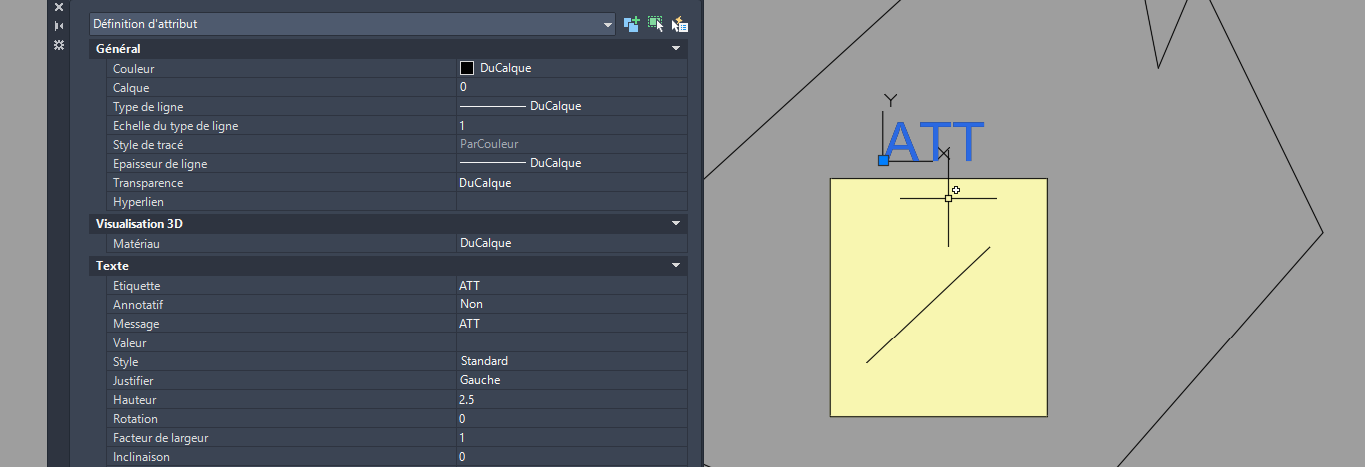
This tool adds a new attribute to the definition of several blocks in the DWG. It asks for the attribute name, lets you choose which blocks to modify, then inserts the attribute into each selected block. Blocks already placed in the drawing are not updated automatically: synchronization must be done manually afterward using the BATTMAN command in AutoCAD.
Set the attribute name
The software opens the DWG and asks you to define the name of the new attribute.
The attribute is created as invisible so it does not interfere with the drawing layout.
You define the name of the attribute to add. Select blocks to modify
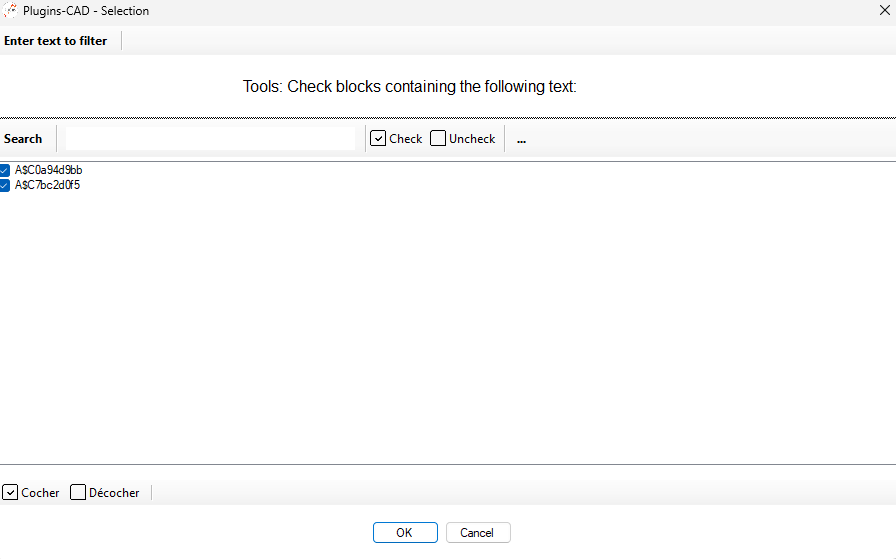
You choose which block definition(s) will receive the new attribute.
Only selected blocks will be modified.You control exactly which blocks are updated. Add the attribute to the block definition
The new attribute is inserted directly into the definition of each selected block.
From this moment, the block contains this attribute in its internal structure.The block definition is updated to include the new attribute. Important: no automatic synchronization
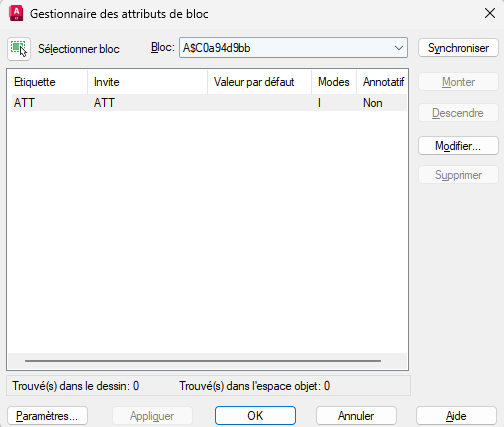
Existing block insertions in the DWG are not automatically updated.
To propagate the new attribute to existing instances, you must run the BATTMAN command in AutoCAD.Existing blocks must be synchronized manually using BATTMAN. Save the DWG
The DWG is saved with the updated block definitions.
Any new block insertions after this will already contain the new attribute.The file is saved with the enriched block definitions.