
AutoCAD set blocks to ByBlock – update block colors (except hatches)
This tool performs an AutoCAD set blocks to ByBlock update on the entire drawing.
It forces all internal block entities to use the ByBlock color mode, so that the block takes the
color of the layer where it is inserted. This creates cleaner CAD standards and makes block
management much easier.
However, hatches remain unchanged. Their color often communicates technical meaning, so the tool
preserves their original appearance. In addition, if you want to improve overall CAD standardization,
you may explore our other AutoCAD automation tools.
For more details about ByLayer and ByBlock colors, see the
official Autodesk documentation
.
How to use AutoCAD set blocks to ByBlock
Opening the DWG
First, the software loads the DWG file. The drawing becomes the active source to apply
the color update.
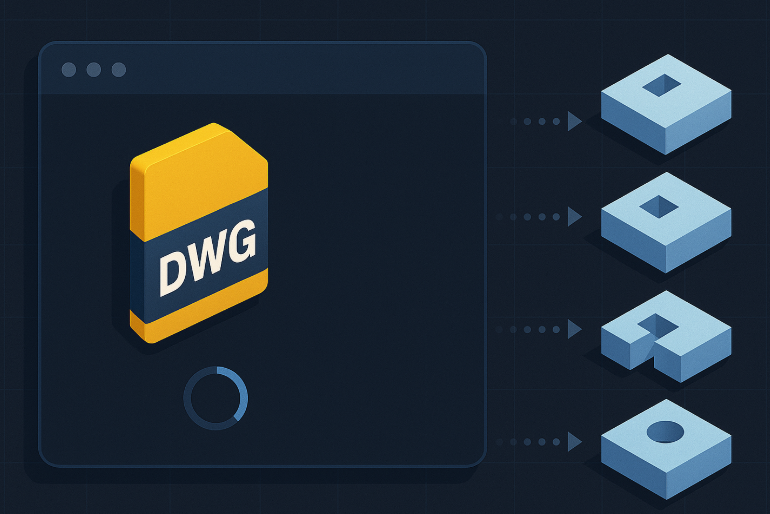
Opening the drawing to clean. Accessing block definitions
The software enters each block definition to inspect and modify its internal entities.
Therefore, all lines, polylines and text inside blocks can be updated consistently.Automatic block-by-block processing. Applying ByBlock color
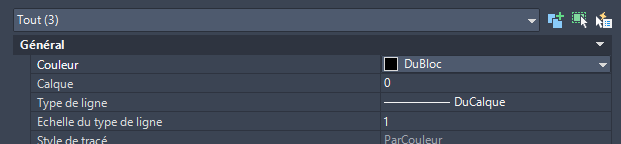
Then, the tool sets all internal block entities (lines, polylines, text, etc.) to
ByBlock. As a result, blocks adopt the color of the layer where they are inserted.Internal block colors are standardized. Exception: hatches are preserved
HATCH entities keep their original color. This avoids losing important visual meaning.
Many technical drawings use hatch colors to represent materials or zones.Hatches retain their original colors. Saving the DWG
Finally, the DWG is saved with standardized colors. The blocks are now clean, predictable
and controlled entirely by layer behavior.Final file saved: clean blocks, consistent colors.

Why use AutoCAD set blocks to ByBlock?
Running an AutoCAD set blocks to ByBlock cleanup ensures consistent behavior
across your project. Therefore, block colors become easy to manage. You avoid files where
blocks appear with unexpected colors or overrides. This method simplifies printing, improves readability
and aligns your DWGs with standard CAD practices.