
AutoCAD ByBlock yellow hatches – set blocks to ByBlock and hatches to yellow
This module performs an AutoCAD ByBlock yellow hatches update on your drawing.
It standardizes internal block colors by switching all internal entities to ByBlock
and applies a highlight color to hatches. As a result, block colors can be controlled from the
insertion layer, while solid hatches remain clearly visible in yellow.
This is useful when you want to clean up inconsistent block colors and still keep fill areas
easy to identify. You can combine this color normalization with other
AutoCAD automation tools.
For more information about colors, ByLayer and ByBlock behaviors, you can also check the
official Autodesk documentation
.
How to use the AutoCAD ByBlock yellow hatches tool
Opening the DWG
First, the software opens the DWG to process. The current drawing becomes the working file
for the color update.
Loading the drawing to modify. Setting internal entities to ByBlock
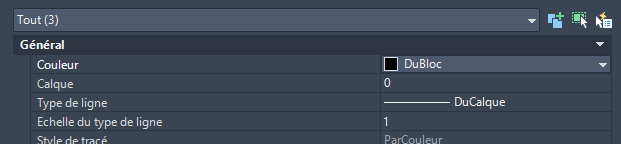
Next, inside each block, all entities (lines, polylines, text, etc.) are forced to use the
ByBlock color. This removes fixed colors and prepares blocks to follow the color
of the layer where they are inserted.Standardization: all internal block elements use ByBlock. Setting hatch color to yellow
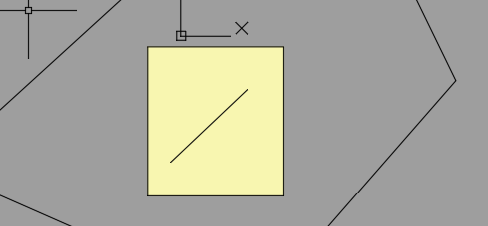
Then, solid hatches are forced to yellow. This makes fill areas, highlight zones and safety
regions immediately recognizable, even when block or layer colors change.Solid hatches become yellow to remain visible. Saving the DWG
Finally, the DWG is saved with normalized block colors (ByBlock) and yellow hatches.
The drawing is now easier to manage: block colors are controlled externally, while fills remain
consistently highlighted.Final drawing saved with controlled color settings.
Why use AutoCAD ByBlock yellow hatches?
Using an AutoCAD ByBlock yellow hatches workflow helps you keep a clear separation
between block structure and visual emphasis. Blocks become easy to recolor via layers, while
important hatch zones stay visible and consistent. This simplifies plotting, improves readability
and aligns your DWGs with clean CAD standards.