
AutoCAD dynamic blocks Excel – export dynamic block information
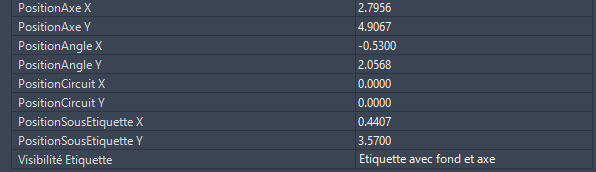
This tool retrieves not only standard block attributes, but also their dynamic parameters
(visibility, states, stretches, positions, and more). You choose which blocks to analyze in Model Space,
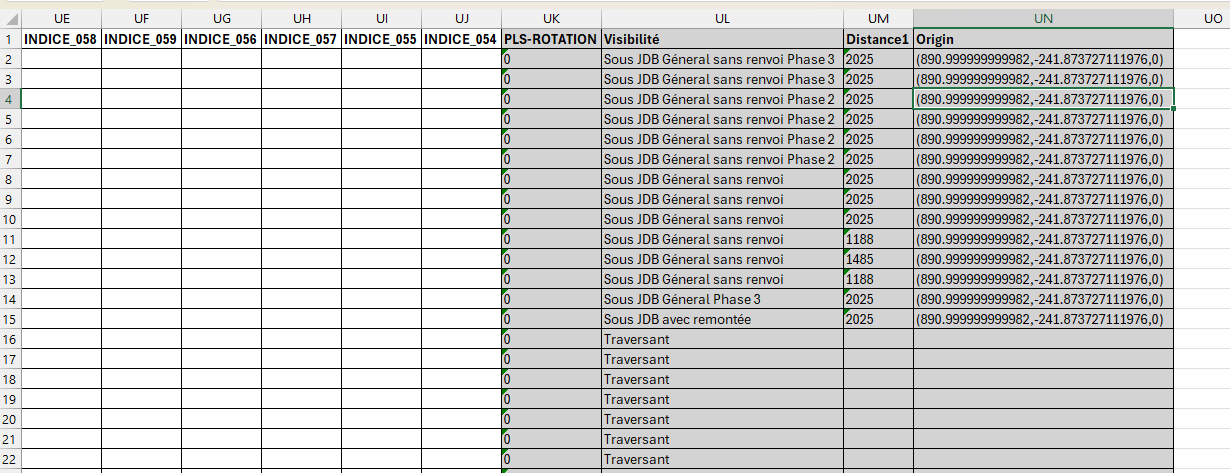
and the plugin reads their values, then automatically generates an Excel file ready for editing.
It is ideal for QA checks, takeoffs, job preparation and documentation.
If you need other productivity tools around block management, you can also visit our
AutoCAD plugins overview.
For more background on dynamic blocks and parameters, the
official Autodesk documentation
provides detailed explanations.
How to export dynamic block information from AutoCAD to Excel
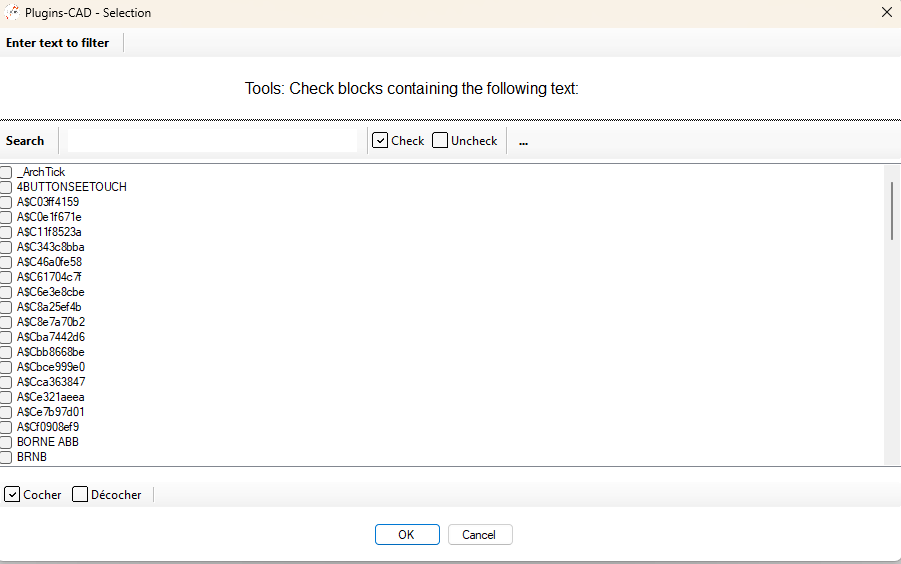
Select dynamic blocks to export
In the DWG, select the blocks whose information you want to extract from Model Space.
You can target only specific technical blocks, symbols, equipment or any dynamic blocks involved in your project.
Select the relevant blocks in Model Space. Read attributes and internal information
The software reads standard block attributes (tag, description, comments, etc.) as well as useful internal properties.
The data to be exported to Excel is prepared line by line for each block instance.Automatic extraction of standard attributes. The plugin also detects the block’s dynamic parameters: visibility states, configuration options,
stretches, set positions, and other dynamic settings. These values are added for each block instance
so that you get a complete technical view in Excel.Dynamic parameters are included for each block. A clear, block-by-block table is generated for review and control. Excel file ready for editing
The generated Excel file is ready for notes, corrections and additions.
You can use filters, sorting and formulas to check data consistency,
prepare purchase lists, or validate technical configurations before issuing drawings. alt= »Excel file cr
 alt= »Excel file cr