
AutoCAD convert groups to blocks – standardize all grouped entities
This tool replaces all groups in your DWG with proper blocks.
It scans the entire drawing, detects grouped objects and converts each group into a reusable block.
When an identical block already exists, the software reuses it to avoid duplicates.
As a result, the DWG becomes cleaner, standardized and easier to maintain.
You can combine this tool with our block-management modules in the
AutoCAD plugins collection.
For more information on blocks and groups, you can visit the
official Autodesk documentation.
How the group-to-block conversion works
Opening the DWG
First, the software opens the DWG you selected.
The conversion will be performed directly on the loaded file.
Loading the drawing to convert. Identifying groups
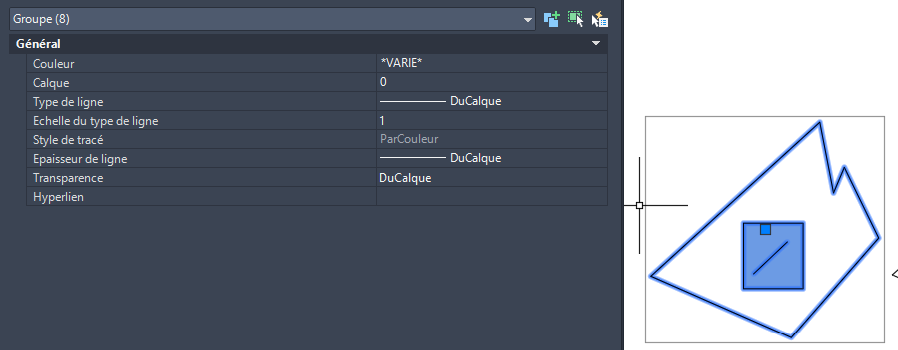
Next, the tool scans the entire drawing to detect all groups.
The goal is to identify every entity that is not yet a block.Scanning the DWG to list all groups. Group → Block conversion
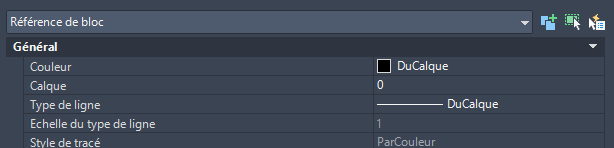
Then, each detected group is converted into a block.
If the group matches an existing block perfectly, the software reuses that block instead of creating a new one.
This ensures clean, standardized content without unnecessary duplicates.Standardization: every group becomes a reusable block. Drawing cleanup
After inserting the new block, the original grouped entities are removed.
Only the clean final block remains, ensuring a tidy and consistent drawing structure.The group disappears and is replaced by a clean block. Saving the DWG
Finally, the updated DWG is saved.
The drawing now contains no groups — only standardized blocks.
Once finished, the tool can continue with the next DWG and repeat the process.The final file is ready, with no stray groups.

Why convert groups into blocks?
Converting groups into blocks improves DWG structure, reduces inconsistencies and speeds up editing.
It also makes your drawing easier to reuse across multiple projects.
This AutoCAD convert groups to blocks workflow is ideal for cleaning legacy files
and preparing drawings for collaboration or publication.