
AutoCAD import layout names – rename layouts from Excel
This tool automatically renames the layouts (Paper Space tabs) based on an Excel file you have prepared.
Instead of renaming each tab manually in AutoCAD, you edit layout names in Excel and let the software apply
these new names to the DWG.
This is particularly useful when you need consistent sheet names for clients, projects or printing sets.
You can pair this AutoCAD import layout names feature with the export module to build
a full “Excel-driven” naming workflow. You will also find other related tools in our
AutoCAD plugins collection.
For more information on layouts and Paper Space, you can refer to the
official Autodesk documentation
.
How to import layout names from Excel
Reading existing layouts
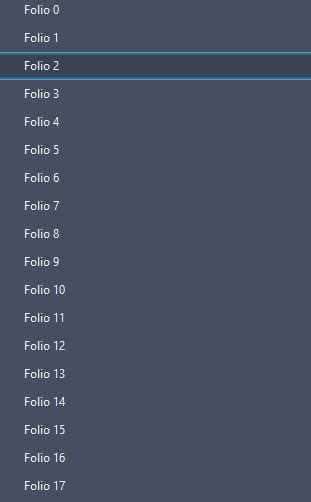
First, the software loads the current list of layouts from the DWG (all Paper Space tabs).
This initial scan allows it to know which layouts exist and how they are ordered.
The current layout names are detected. Choose the modified Excel file
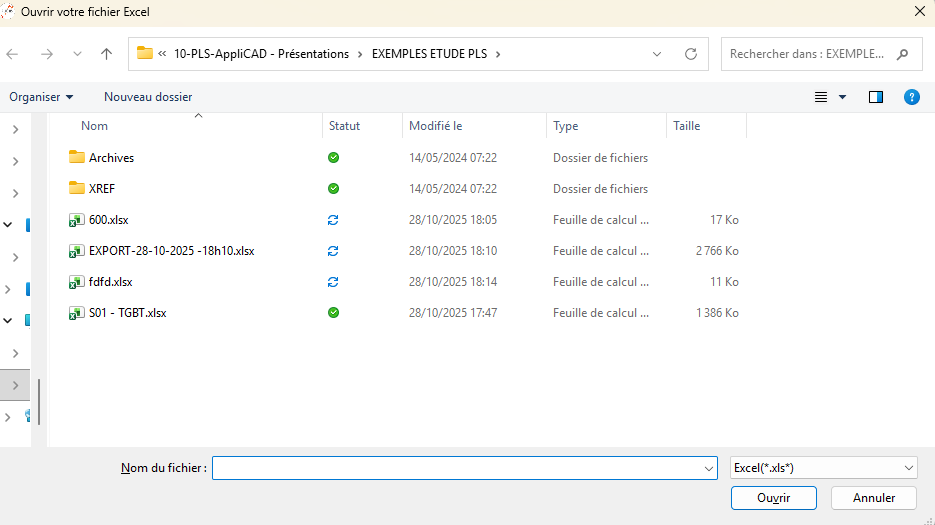
Next, you select the Excel file where you prepared the new layout names.
In most workflows, this Excel file comes from a previous export of layout names that you have edited.You provide the updated Excel reference file. Importing the changes
Then, the software reads the Excel content and matches each existing layout with its new name.
This mapping step ensures that each tab receives the correct label.Excel → DWG layout name mapping. Automatic layout renaming
Once the mapping is ready, the layouts (tabs) in the DWG are renamed automatically according
to the values read from Excel. You no longer have to open each layout and rename it manually.Each layout takes on the correct project, client or sheet name. Saving the DWG
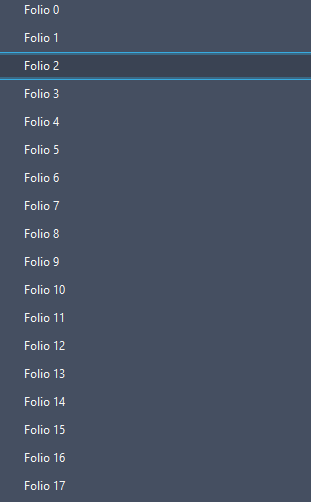
Finally, once the renaming is applied, the DWG is saved.
You now have clean and consistent layout names, aligned with the Excel list that was used as reference.The new names are now stored in the drawing.
Benefits of renaming layouts from Excel
Managing layout names in Excel makes it easier to review, validate and translate titles.
It also improves collaboration with project managers or clients who may not use AutoCAD directly.
This AutoCAD import layout names workflow helps you keep consistent sheet names,
reduce manual work and avoid errors when working on large drawing sets.