
AutoCAD import attributes – import block attributes from Excel to Model Space
This tool applies in your DWG the changes you entered in Excel.
First, you export block attributes to an Excel table, edit the values there,
and then this module reads the updated data and writes it into the selected blocks in Model Space.
As a result, you keep AutoCAD and Excel perfectly synchronized.
This workflow is ideal when you need to correct many attribute values, harmonize labels,
or apply client-specific naming rules. You can combine this
AutoCAD import attributes feature with other tools in our
AutoCAD plugins collection
.
For more information about block attributes, you can also refer to the
official Autodesk documentation
.
How to import attribute values from Excel to Model Space
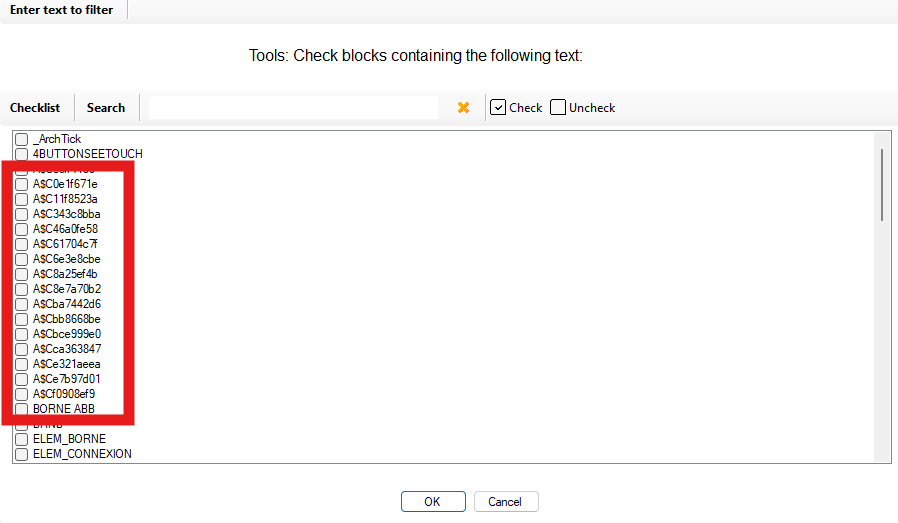
Select the blocks to update
In Model Space, select the blocks that should receive the new values.
This way, you control exactly which elements are updated and avoid changing everything everywhere.
You choose which blocks will be updated. Import new values from Excel
Next, the software reads your Excel file (the one generated by the export, then modified).
It retrieves the new attribute values and applies them to the selected blocks in Model Space.
No more manual re-entry in AutoCAD, even when you have dozens of blocks to update.Attributes are updated automatically from Excel. Save the DWG
Finally, once the blocks have been updated with your new attribute values,
the DWG is saved. You leave with an up-to-date drawing that matches your Excel table.The changes are safely saved in the drawing.
Benefits of importing attributes from Excel
By centralizing attribute editing in Excel, you can use filters, formulas and copy/paste
to clean data much faster than inside AutoCAD.
This AutoCAD import attributes workflow reduces manual errors,
speeds up large-scale updates and keeps your drawings consistent with project standards.