
AutoCAD import Excel – update Paper Space attributes
This tool applies to your layouts (Paper Space) the values you previously modified in Excel.
You select the blocks to update, the software reads the Excel file located next to the DWG,
then automatically rewrites the attributes block by block.
The drawing is saved with clean, updated values, without any manual retyping.
It is especially useful when you have many title blocks, revision blocks or information panels to update in one go.
You can first export data to Excel, clean everything (legal mentions, project references, client info),
then use this module to push the new values back into AutoCAD layouts.
You can also combine it with other tools from our
AutoCAD plugins collection
for a fully Excel-driven workflow. For more background on attributes in layouts, you may refer to the
official Autodesk documentation
.
How to import attributes from Excel into Paper Space
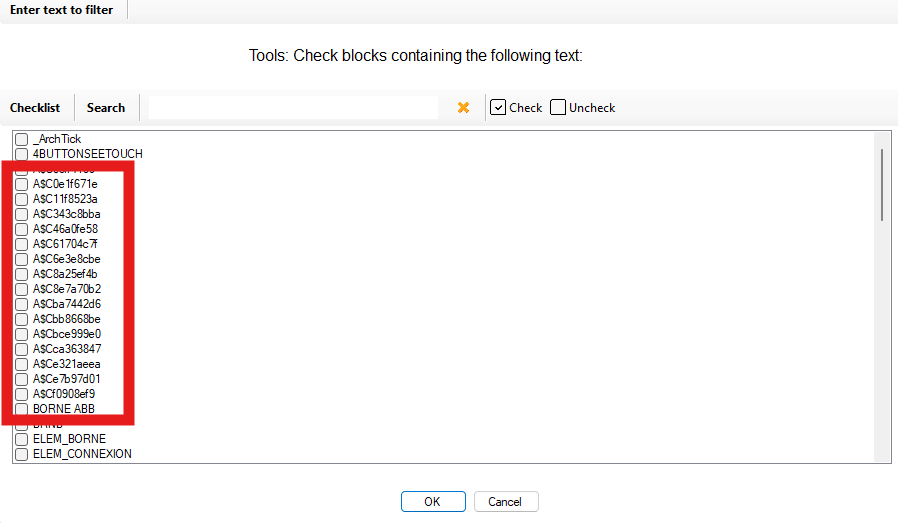
Select the blocks in Paper Space
Start by selecting the blocks in Paper Space (your layouts) that you want to update.
These are often title blocks, revision tables, information panels or project headers.
Selecting specific blocks means you only update what needs to change, instead of modifying everything everywhere.
Select the relevant title blocks / info blocks in the layouts. Read the associated Excel file
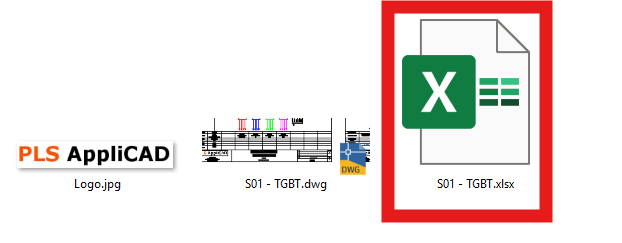
The software automatically locates the Excel file saved next to the DWG.
In a standard workflow, this is the Excel file previously generated by the Paper Space export module,
then modified by you (layers, attributes, legal mentions, project codes, dates, etc.).The tool finds the Excel file that corresponds to the current drawing. This ensures that the right Excel dataset is used and that each layout line in Excel
can be matched back to the correct block inside the DWG.Apply changes block by block
The plugin reads the updated values in Excel and applies them block by block in Paper Space.
Depending on the configuration, it can update:- revised attribute values (project name, address, client, revision index, etc.),
- corrected text information and notes,
- layer or color changes (if such parameters are part of the Excel data).
All this is done automatically, with no manual retyping required, which reduces the risk of human errors
and speeds up delivery.Each selected block is synchronized with Excel. Save the updated DWG
Once the updates are applied, the DWG is saved with its updated title block information.
Your borders and headers now display consistent, clean and validated data across all layouts.The final drawing now contains your updated Excel values. This closes the loop between Excel and the CAD environment and ensures that the documentation sent
to clients, partners or site teams is up to date.

Benefits of an Excel-driven attribute update
Using Excel to prepare attribute values and then reimport them into layouts helps you manage large batches
of drawings more reliably. It simplifies updates after client feedback, legal changes or internal standard
revisions. This AutoCAD import Excel workflow provides better control over title blocks,
reduces repetitive clicks in AutoCAD and improves the overall quality of your project documentation.