
AutoCAD merged PDF layouts – create a merged PDF by selecting layouts
This module allows you to export only part of the DWG to PDF.
Instead of exporting all layouts, you simply check the ones you want and the tool generates
a single merged PDF containing only those selected sheets.
This is convenient for sending a project extract such as revised plans or client updates
without exporting everything.
This AutoCAD merged PDF layouts workflow is ideal when you need a clean, focused PDF set.
You can combine it with other tools in our
AutoCAD plugins collection
.
For general information on plotting and layouts, see the
official Autodesk documentation
.
How to create a merged PDF by selecting layouts
Opening the DWG
First, the software automatically opens the DWG to be processed.
There is no need to prepare a print set manually.
The active DWG becomes the source for PDF export. Selecting the layouts to export
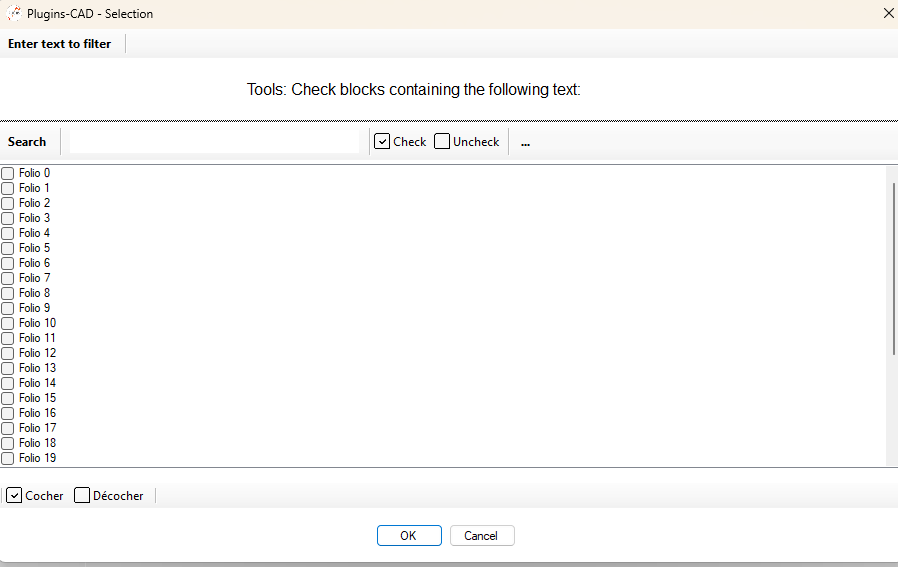
Next, the plugin retrieves the list of all layouts (Paper Space tabs)
and displays a selection window. You simply check the layouts you want to include in the PDF.You choose exactly which layouts will be exported. Generation of individual PDFs
Then, for each selected layout, the tool generates a PDF using the layout’s plot settings.
Each layout becomes a PDF page that is ready to be merged.Each layout becomes a single PDF page ready for merging. Merging into a single PDF
After generating the individual pages, the tool merges all selected PDFs
into one multi-page PDF document. The final file is saved next to the DWG.You get a single PDF containing only the selected layouts. DWG unchanged
Finally, the DWG is not modified by this process.
The tool only generates the merged PDF, which is perfect for sharing the necessary information
without touching the source project.The original drawing remains untouched; only the PDF output is created.

Benefits of merging selected layouts into a PDF
Exporting only the layouts you need helps you send focused documents to clients or partners,
without exposing the entire project. This
AutoCAD merged PDF layouts workflow saves time on printing,
avoids manual selection in AutoCAD and keeps your DWG unchanged while producing clean, ready-to-send PDFs.