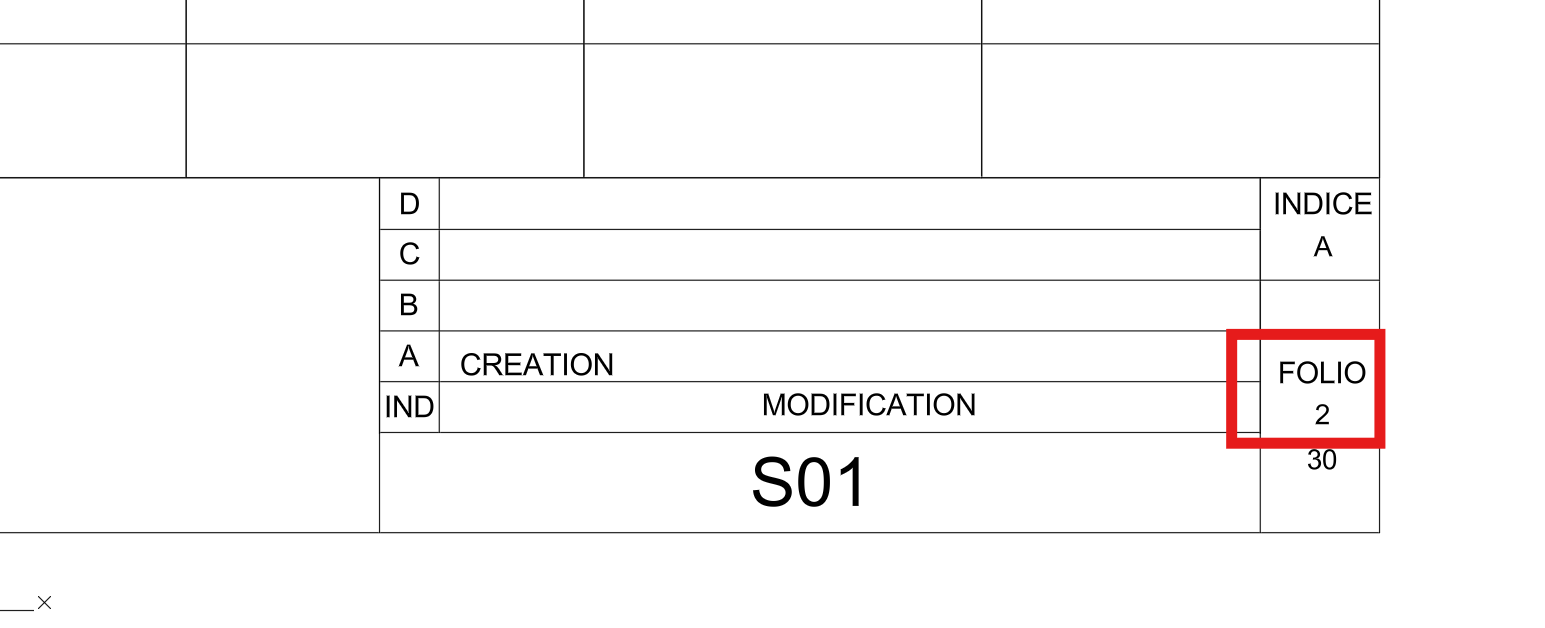
Goal:
AutoCAD sheet count – Identify the number of sheets
By identifying the exact number of sheets in Model Space, the tool guarantees that your sheet count is always correct and up to date.
This avoids manual recounting and reduces errors during project management, especially when many drawings are involved.
Automating the AutoCAD sheet count ensures that every title block displays the right number of sheets across your entire DWG set.
This is essential for project deliveries, batch printing, coordination reviews, and document control workflows.
Manual counting becomes unnecessary, letting you focus on design instead of repetitive checks.
You can also explore other productivity functions on our
AutoCAD plugins page, such as automatic tagging, layout management, and DWG optimization.
For additional technical references, you may consult the
official Autodesk documentation.
Here is how the AutoCAD sheet count logic works: for each DWG in your list, the software opens the file, analyzes Model Space, checks the title block,
writes the correct sheet total, saves the drawing, and moves to the next DWG. This ensures consistent information even when sheets are added,
duplicated, or removed during the project.
Sequential opening of DWGs
The software opens each DWG one by one and performs the same AutoCAD sheet count operation.
This method keeps your workflow stable and avoids memory overload.
Each DWG is opened and processed individually. Sheet count analysis and update
The module runs the Identify Number of Sheets function.
It reads Model Space, determines the sheet count, then updates the Number of Sheets field in the title block.
This eliminates manual errors and ensures accurate documentation.The total number of sheets is calculated and written into the title block. Save and move to the next DWG
Once the Number of Sheets value has been updated, the DWG is saved.
The software then continues the AutoCAD sheet count process with the next file until all drawings are complete.Each file is updated, saved, and processed sequentially.