AutoCAD plugin tutorial – how to use the software step by step
This page is a complete AutoCAD plugin tutorial.
It explains step by step how to load your DWG files, organize batch processing,
launch plugins, automate tasks and configure advanced features.
First, you will learn how to import and manage files.
Next, you will discover how to use the plugin interface.
Finally, the guide shows advanced options such as AI and backup tools.
This tutorial helps you structure your workflow, reduce manual actions and work faster with DWGs.
For more technical information, you can also visit the
official Autodesk documentation
.
To discover more productivity tools, explore our
AutoCAD plugins collection
.
How to use the AutoCAD plugin interface
Add DWGs
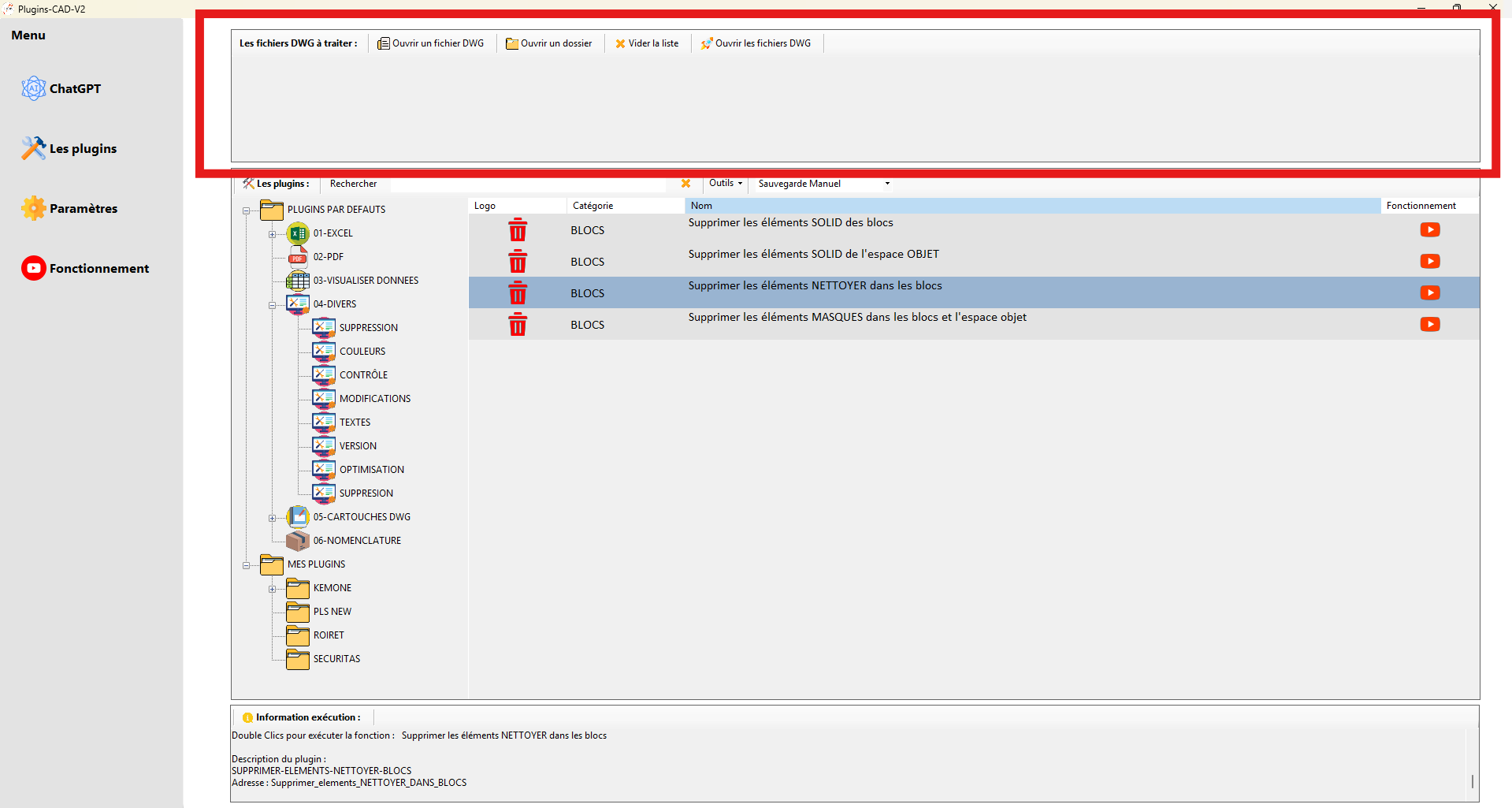
Click “Open” or drag and drop your files or folders to fill the processing list. This is the fastest way to load multiple drawings.

Quickly add your DWG files to the list. Open a Folder
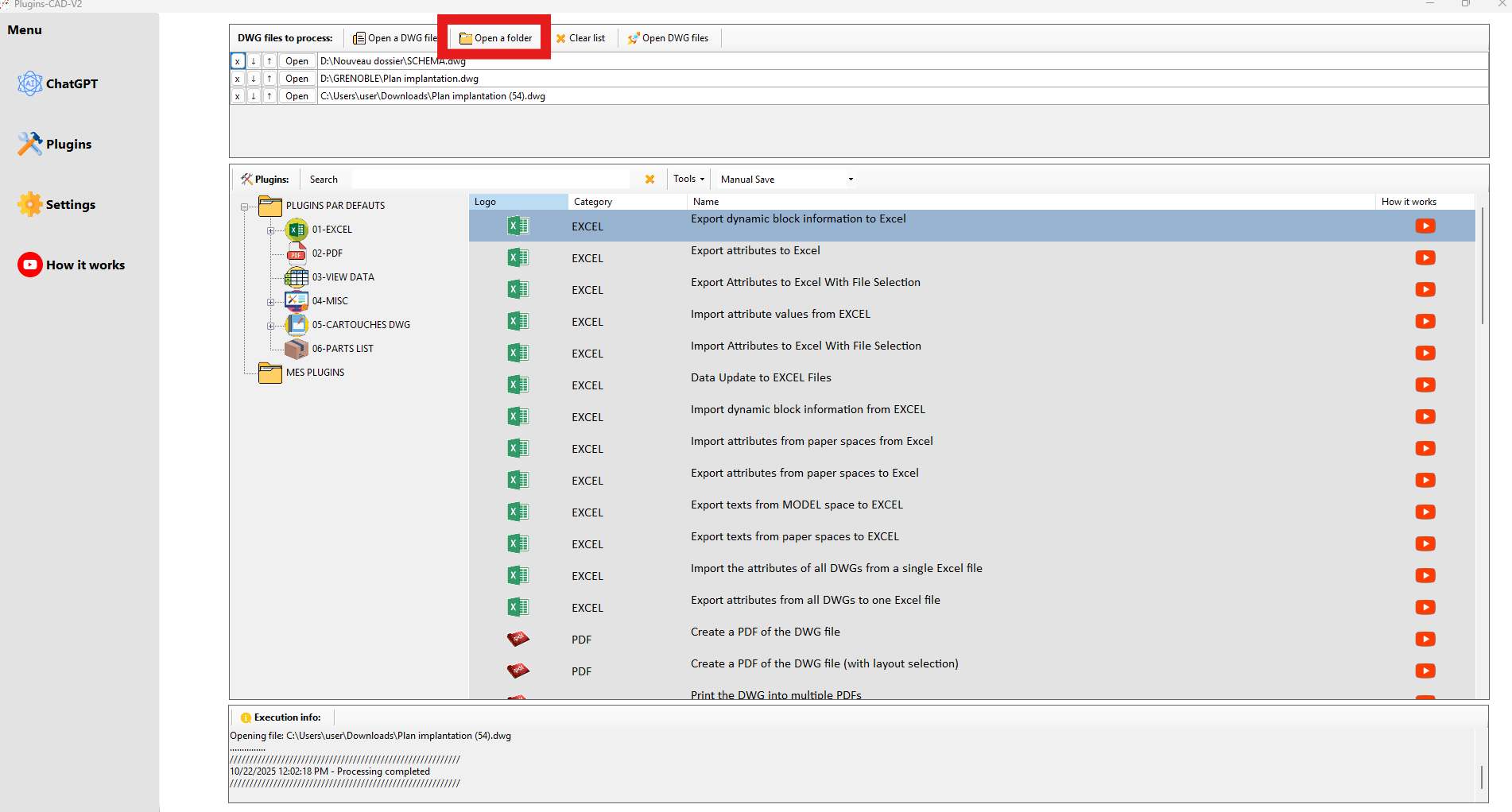
The software automatically scans the selected folder and all its subfolders to find every
*.dwgfile.Recursive subfolder scan with automatic DWG detection. Clear the List
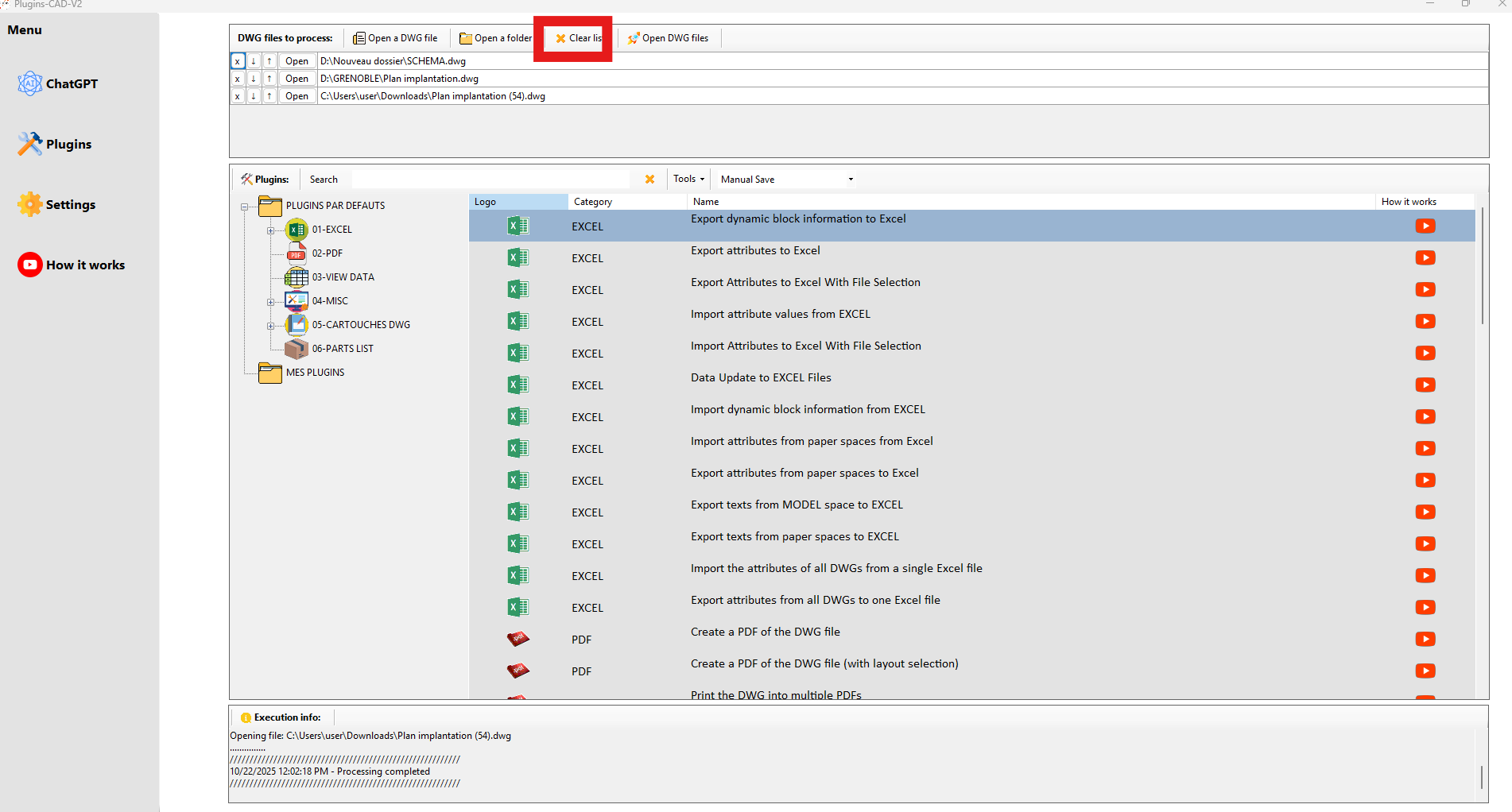
Remove all currently listed DWGs. This is helpful when you want to start with a clean list.
One click to start fresh. Open All DWGs
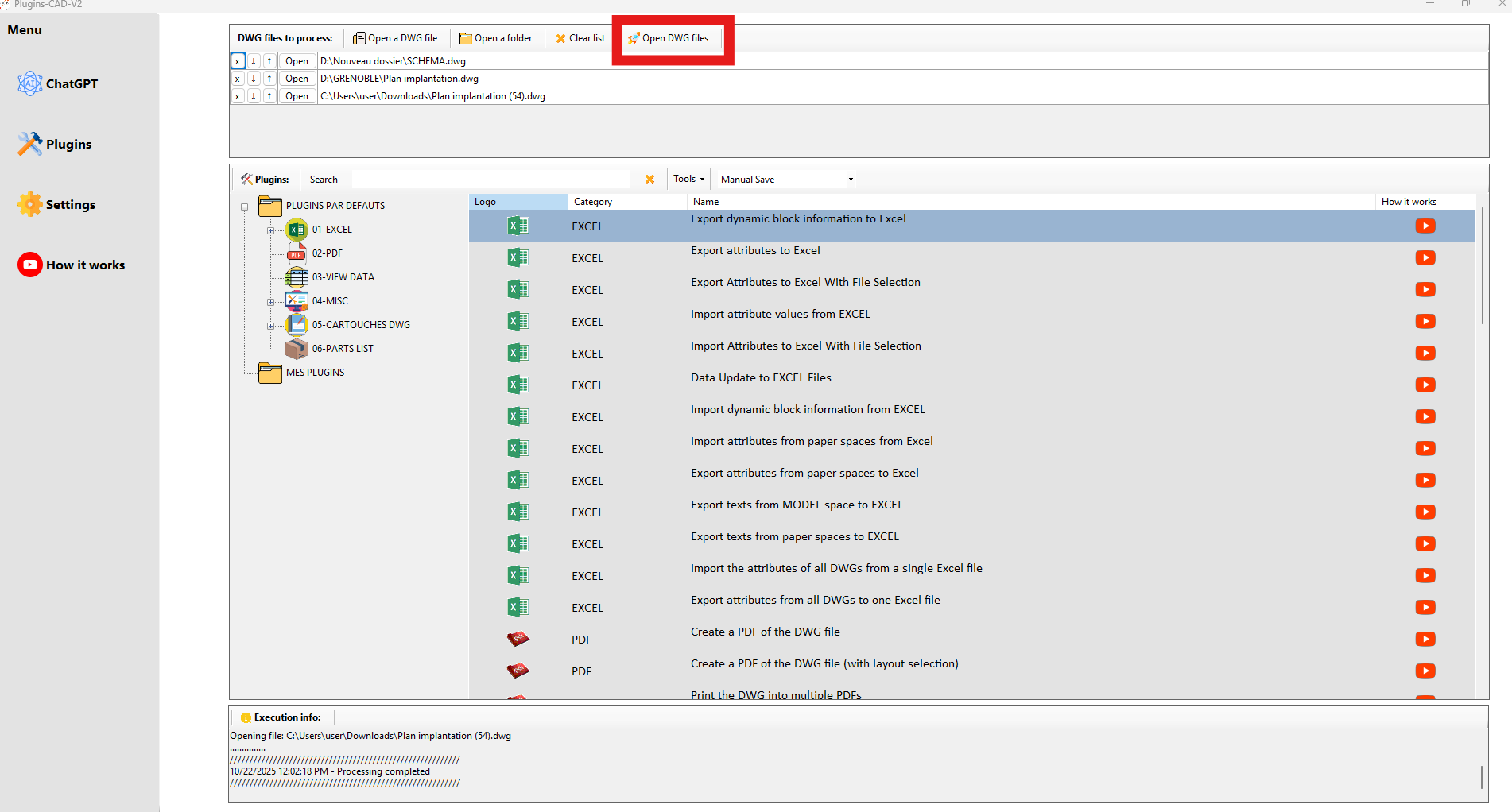
This option opens each file in AutoCAD, automatically and in sequence, saving valuable time during batch operations.
Save time with batch opening. Execution Order
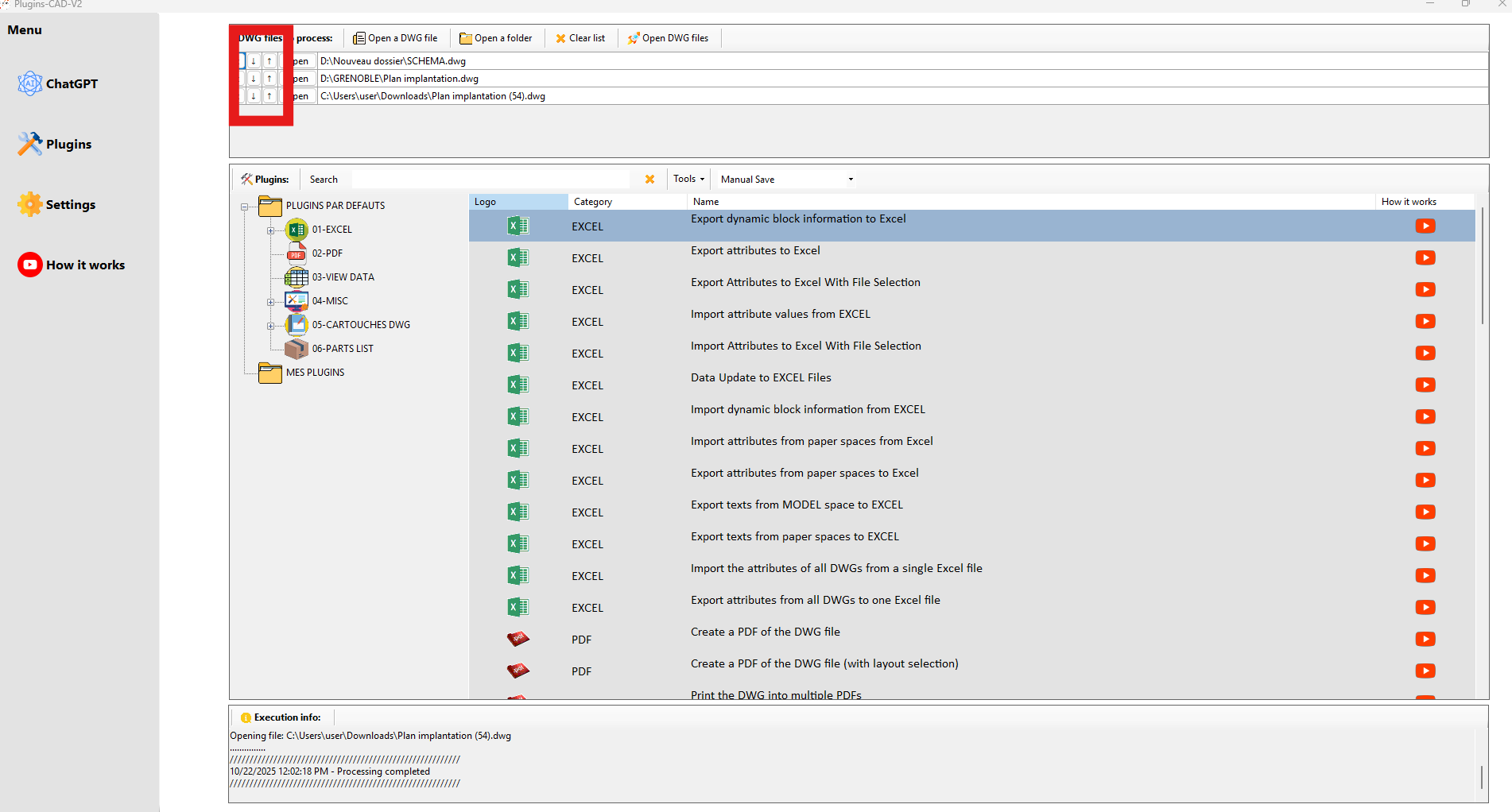
You can reorder your DWGs using Move Up and Move Down, or remove a file with the Trash icon.
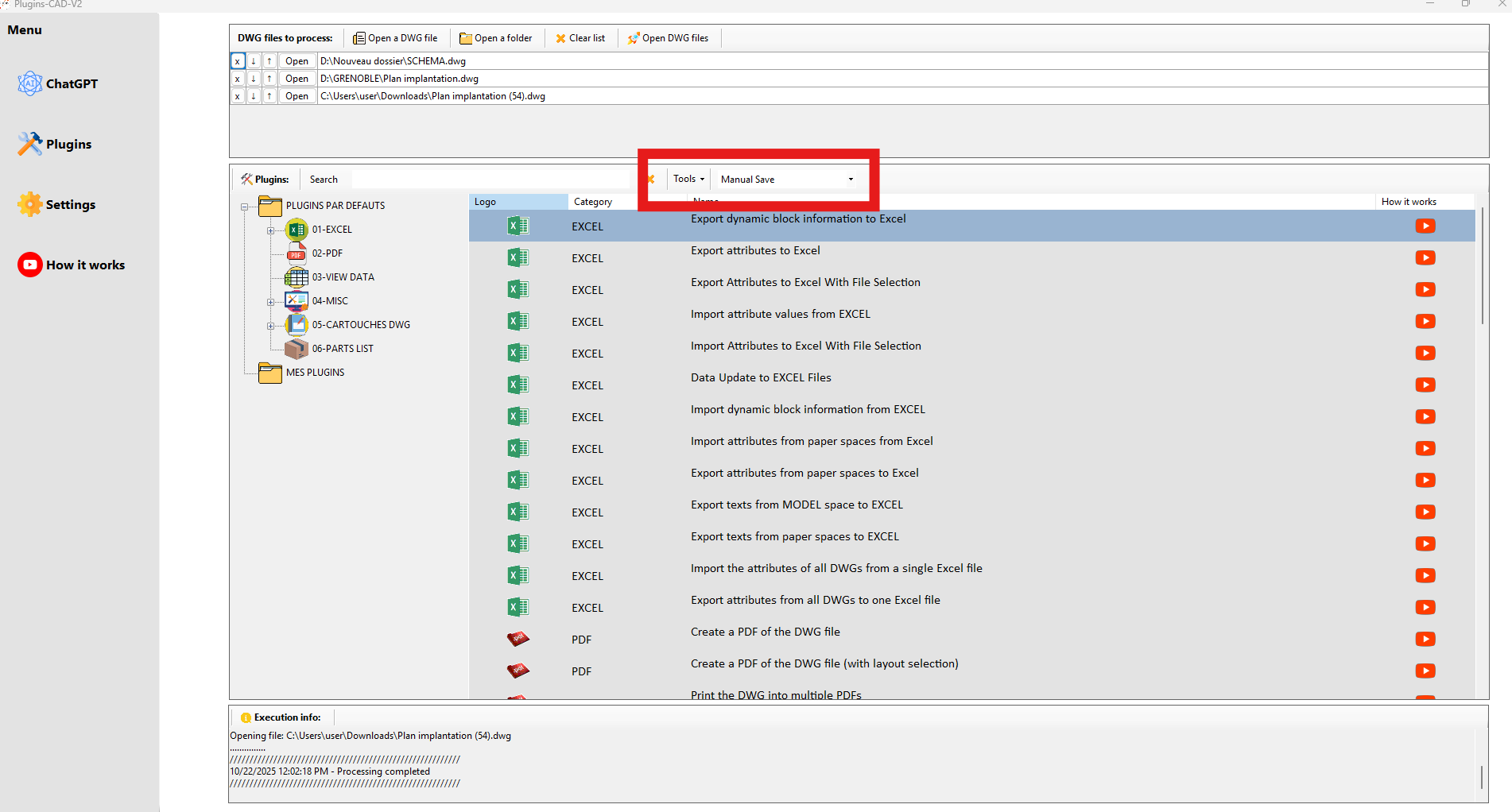
Precisely control processing order. Save Mode
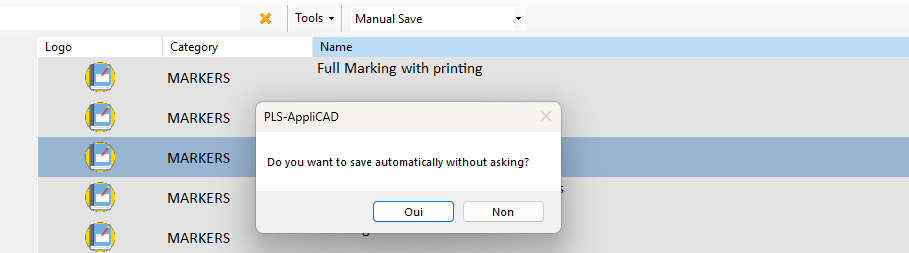
Choose between:
Manual: a confirmation is displayed before each save.
Automatic: direct save without prompts.
Safety or speed: your choice. Plugins Area
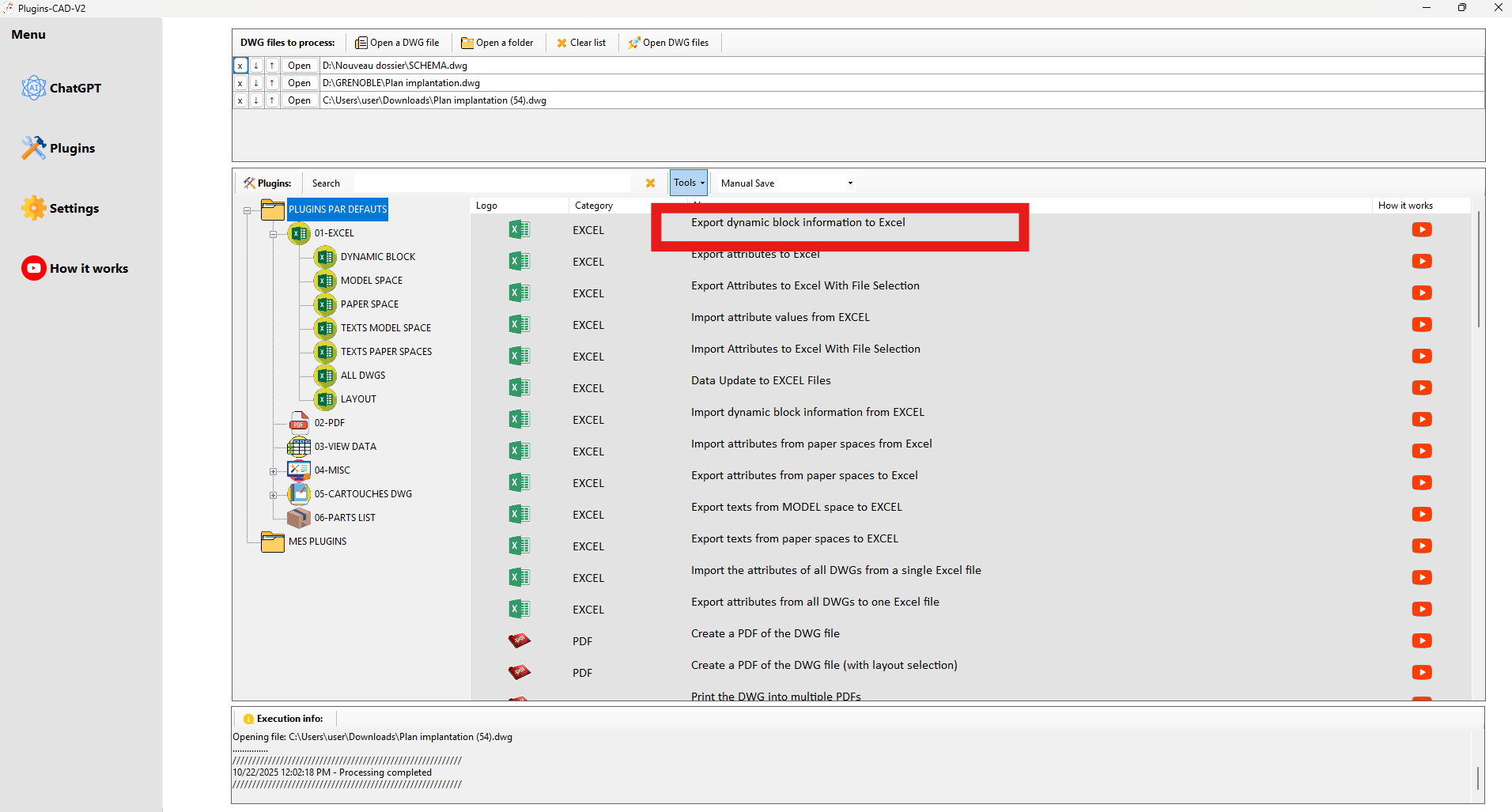
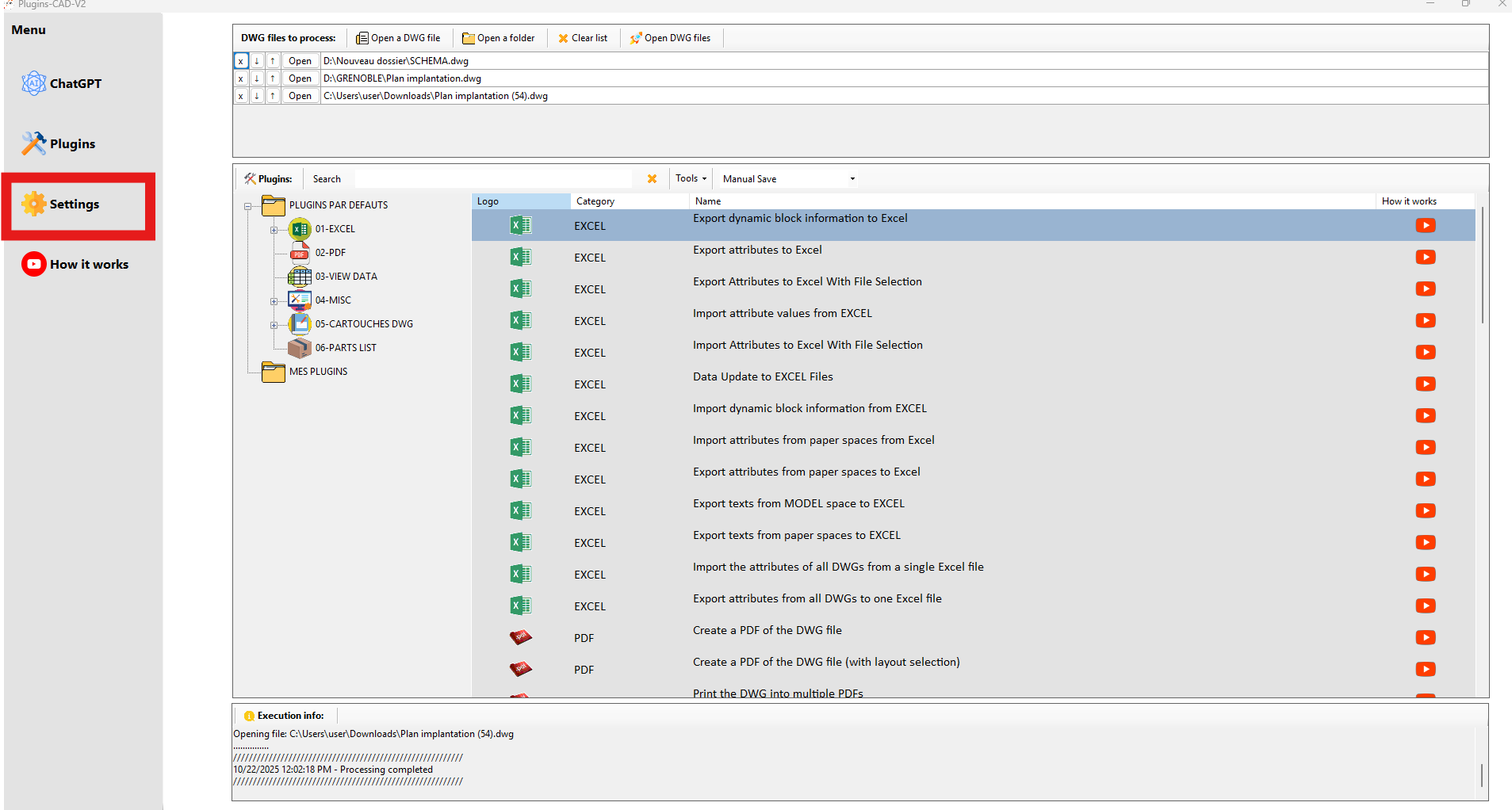
Double-click any plugin to run it on all listed DWGs. This is the core of the automation process.
Run your plugins in one step. Plugin Tutorial
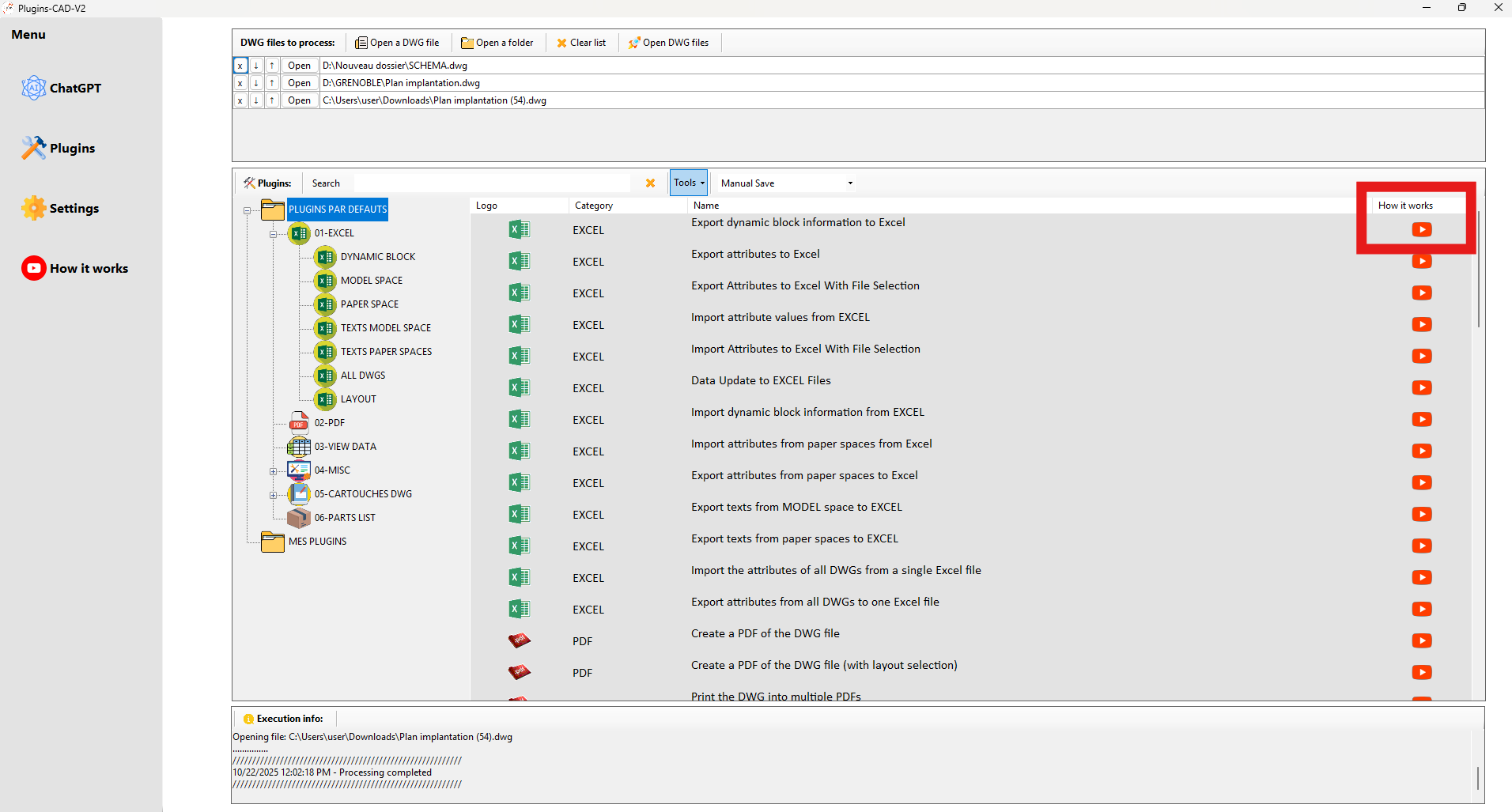
Click the “Tutorial” icon to display detailed documentation about the selected plugin.
Built-in documentation, always available. Plugin Tree
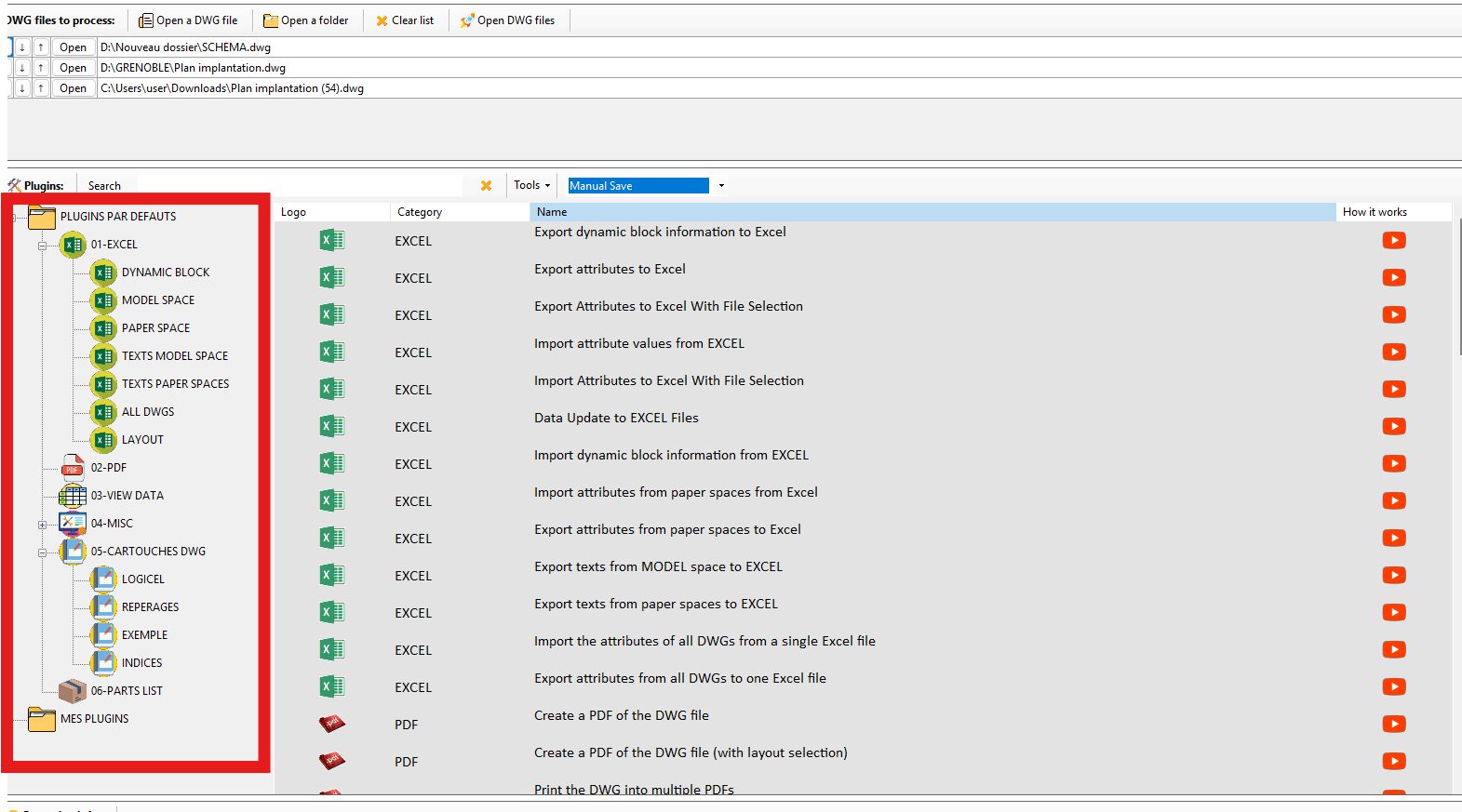
Use the folder tree to filter plugins by category, client or trade. This speeds up navigation.
Find the right plugin instantly. Search a Plugin
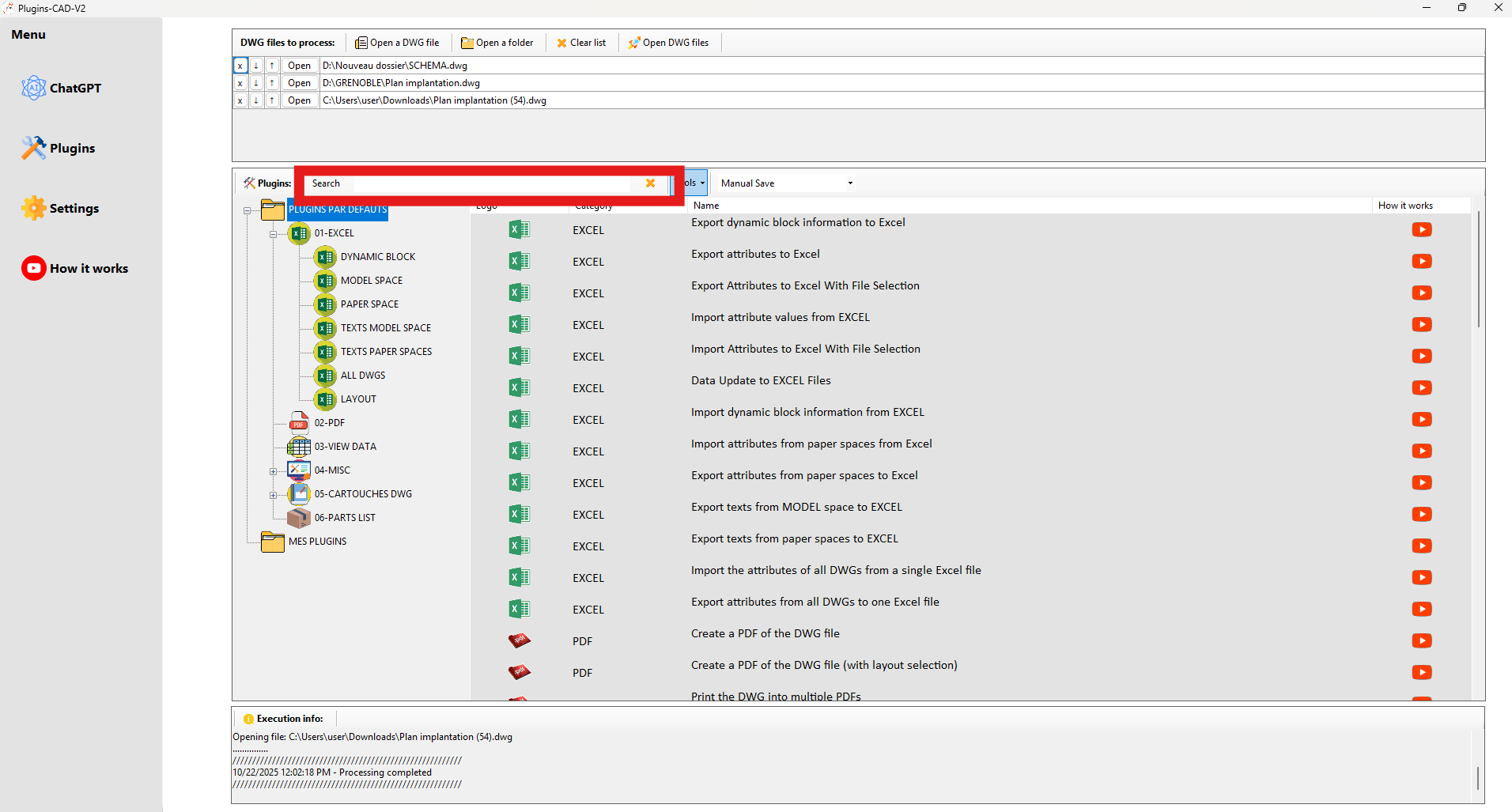
Type a keyword such as a name, function or category to instantly filter the plugin list.
Instant filtering by name or category. Open my Functions Folder
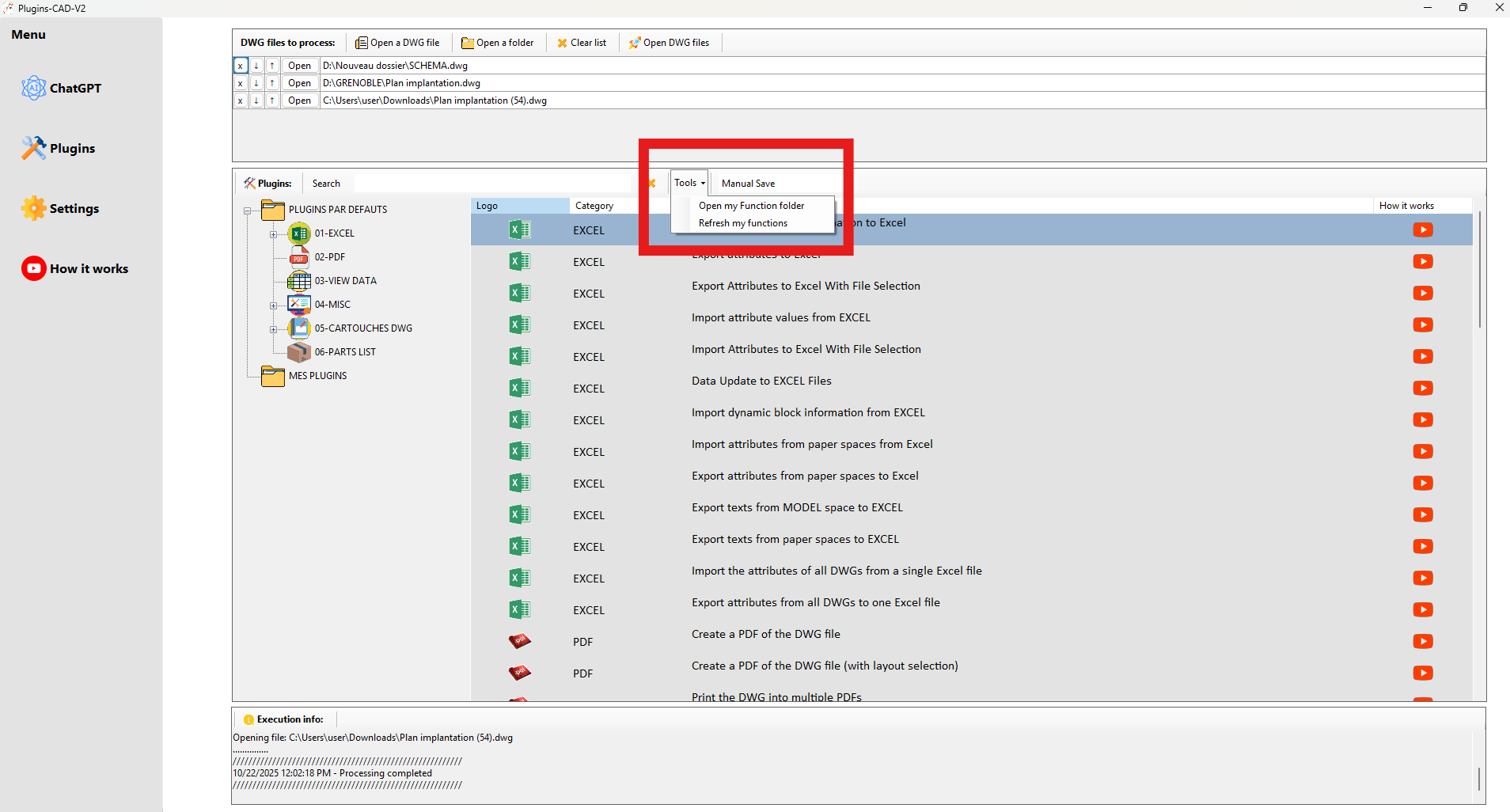
Opens the directory containing your
*.plsiascripts and custom plugins.Instant access to your scripts. AI Menu (ChatGPT)
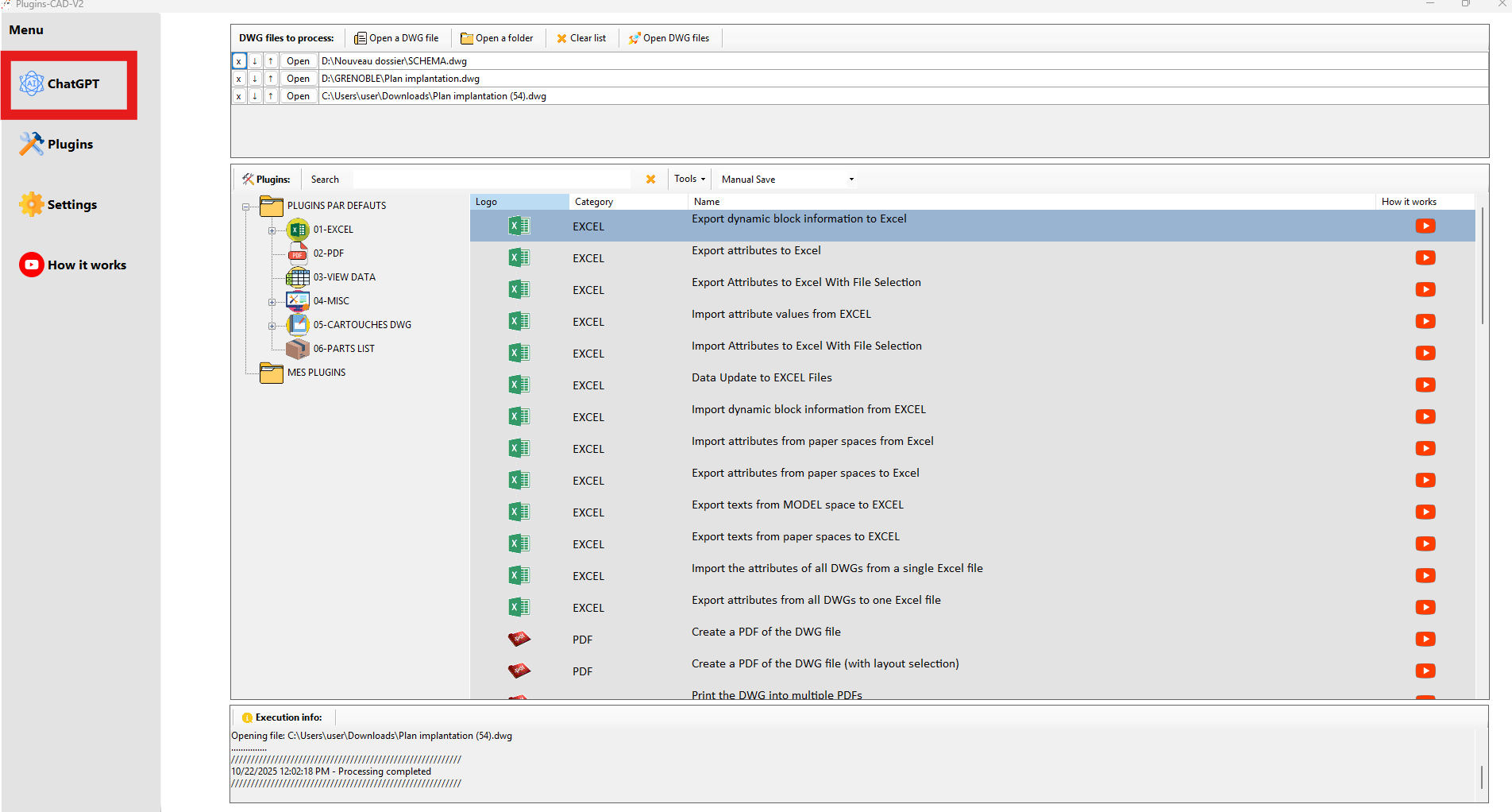
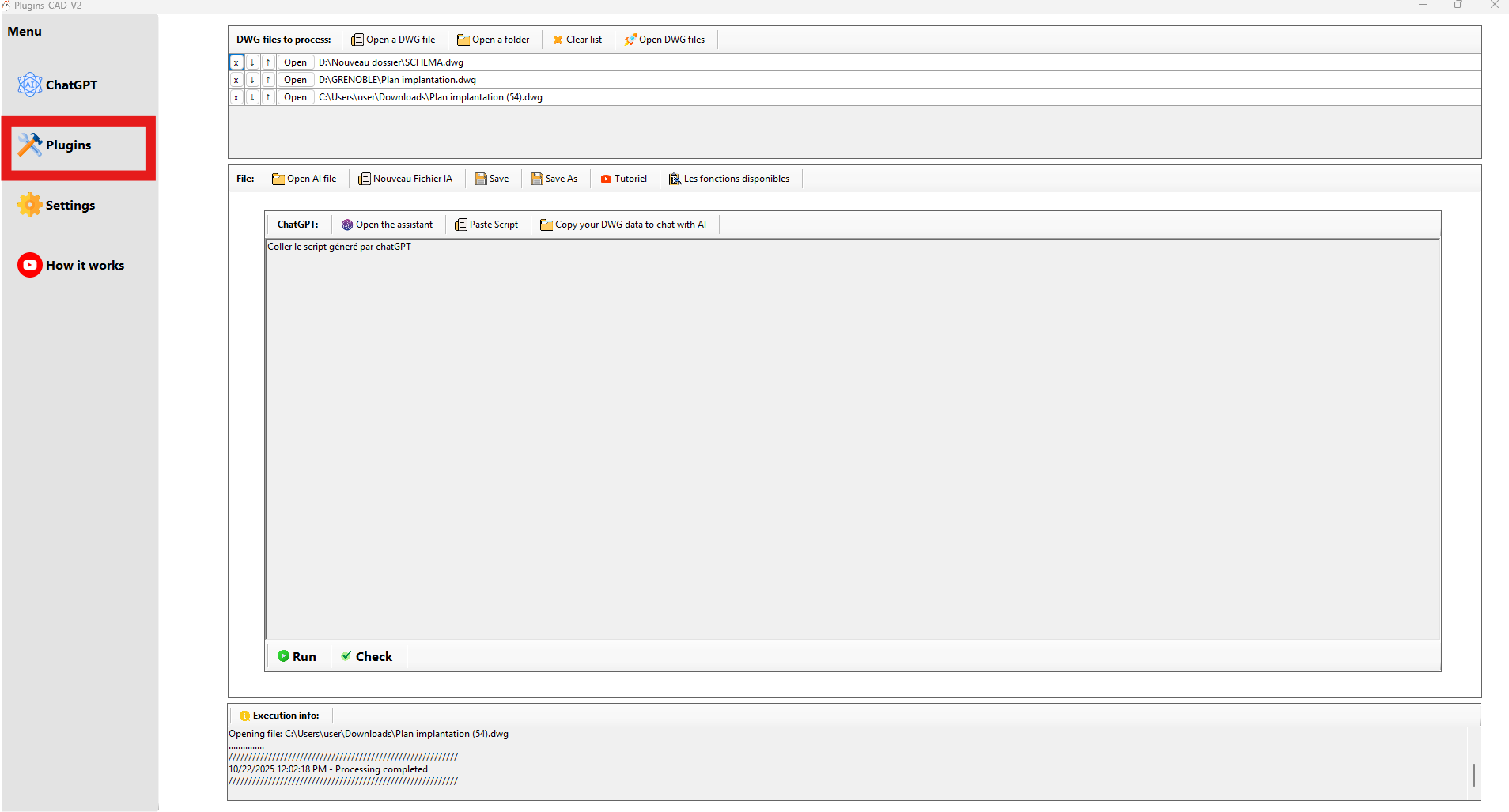
This menu generates, loads and executes
*.plsia*scripts.
It automates repetitive operations without manual coding.Automate tasks with AI. Settings
Configure the interface language, the “My plugins” folder and general software options.
Clear and flexible settings. “Plugins” Window
Return to the main plugin list if you opened another section of the interface.
Access all plugins at any time. Log (bottom of window)
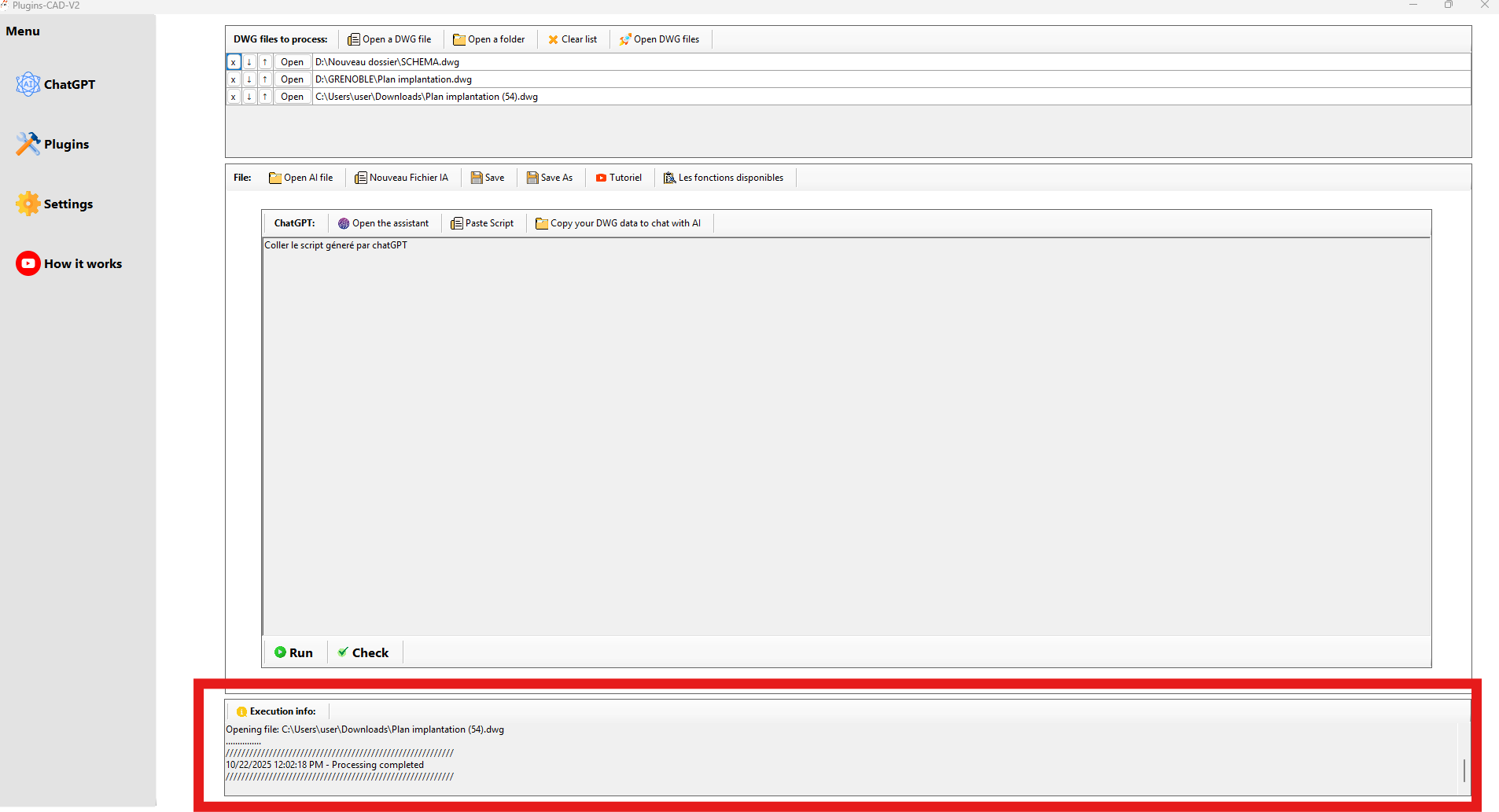
Displays real-time actions, completed processes and error messages.
Monitor everything in real time. Performance Tip
When processing more than 3 DWGs, enable automatic saving to significantly speed up workflows.
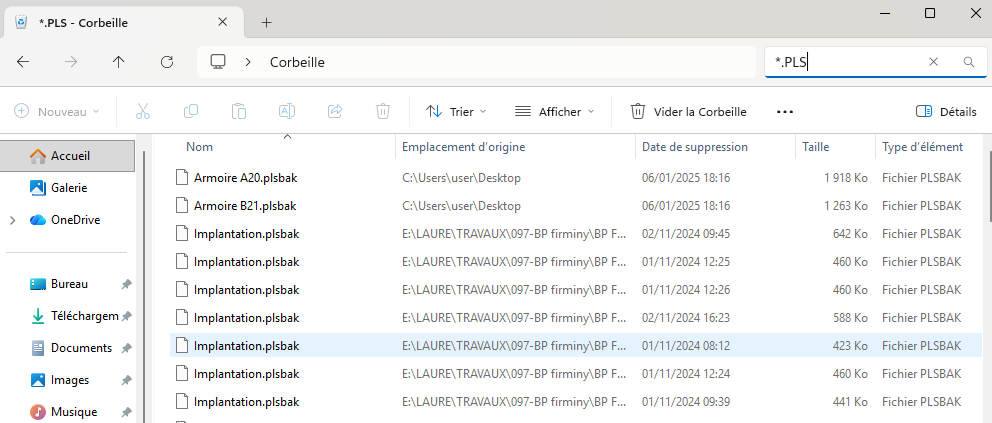
Optimize performance for large batches. PLS Backup (Safety)
Before opening a DWG, a
*.plsbak*backup is automatically created.
The backup is moved to the Recycle Bin so you can restore it if needed.Work safely with automatic backups.