Purpose: View and edit DWG data
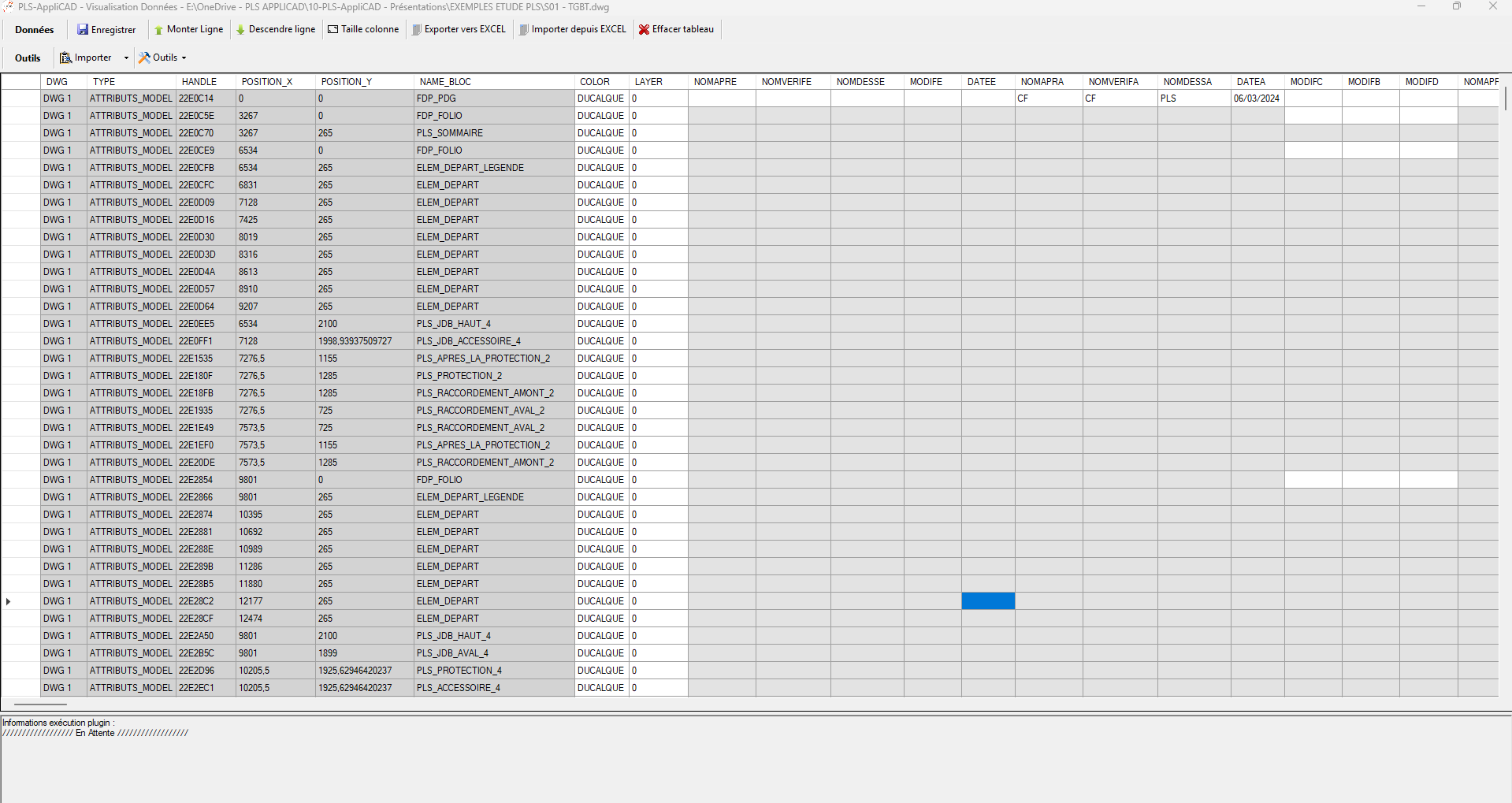
This window displays the DWG information as an editable table. You can correct values, import/export through Excel, filter, reorder, and then write the modifications back into the drawing. It is the quality control and bulk-update tool.
Direct edit table
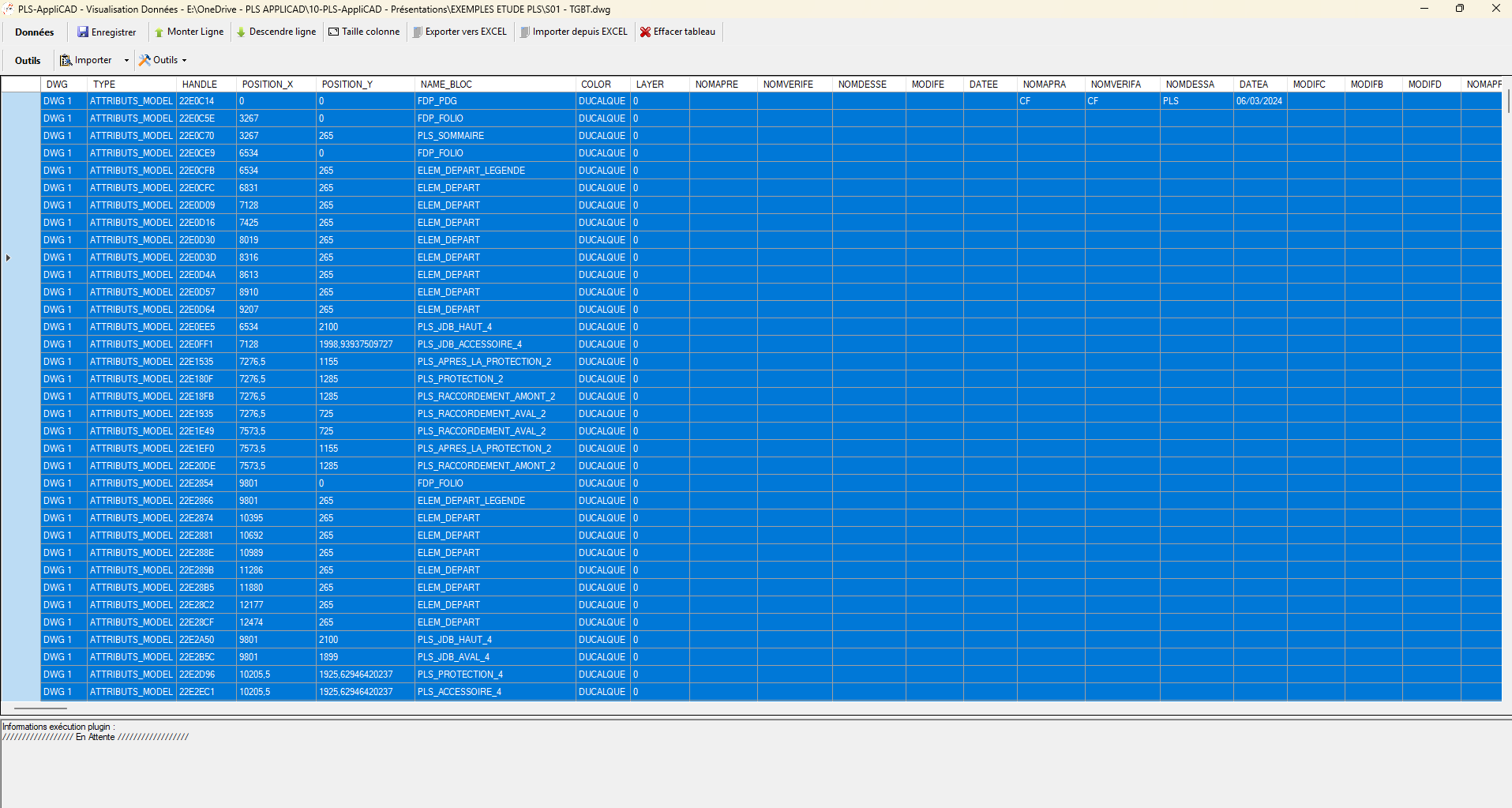
The window displays the DWG data in a table form.
Editable cells can be modified directly.
All key drawing data visible in columns. Save into the DWG
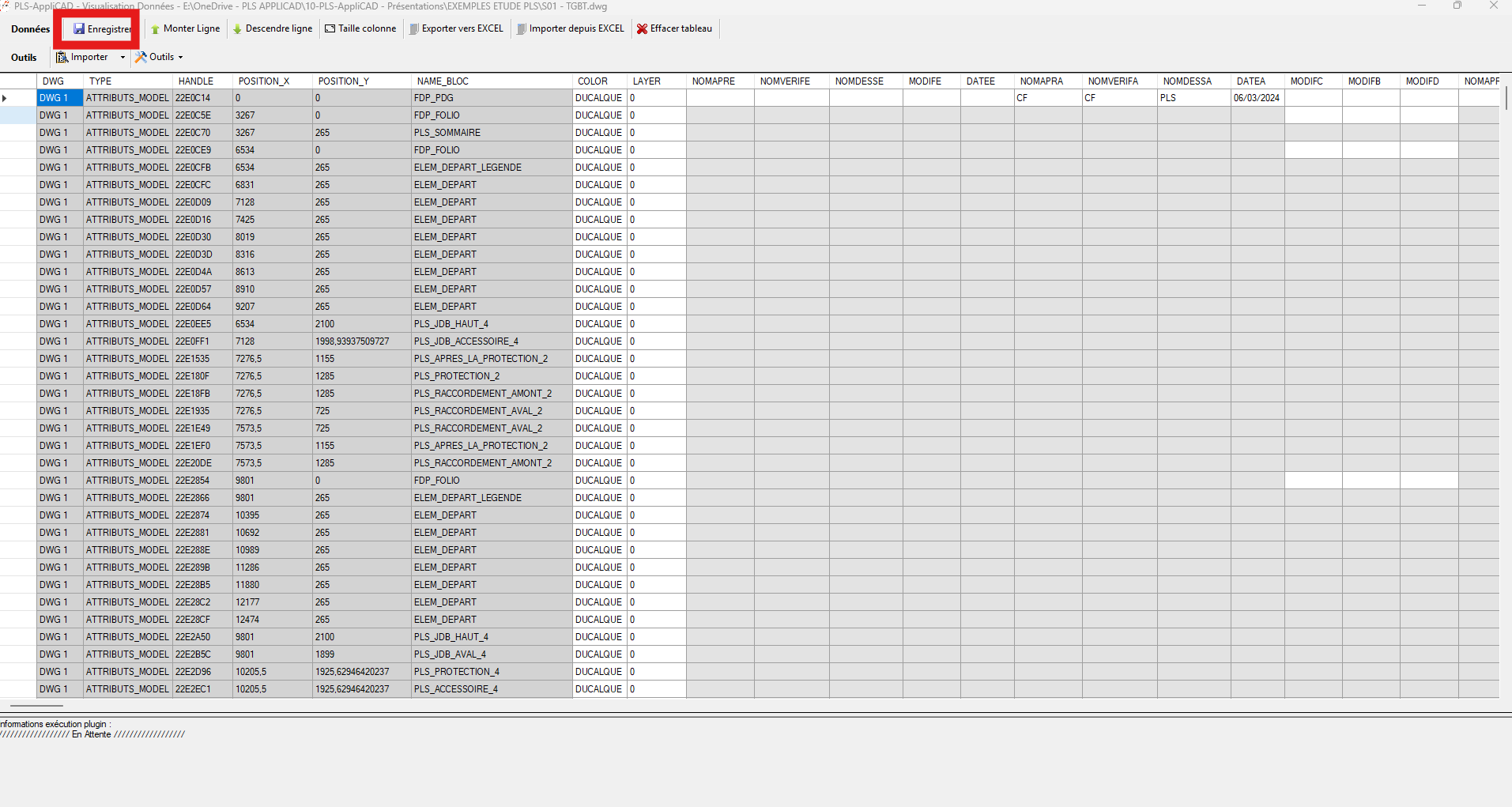
Save: writes your modifications into the DWG and saves the file if values have been changed.
Your changes become official in the drawing. Reorder rows
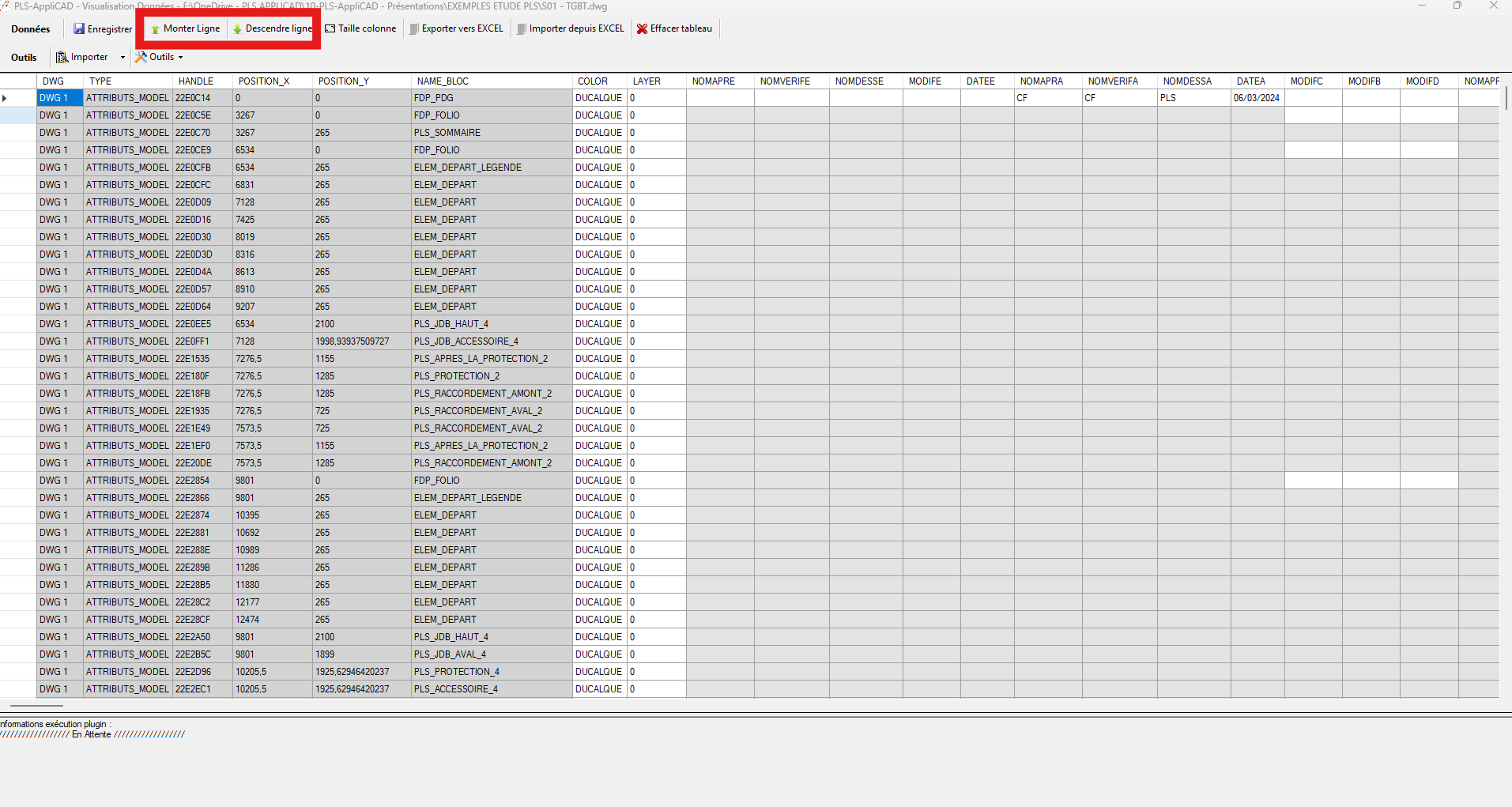
Move Up / Move Down: reorganizes the selected rows.
Useful to restore logical order (folio, reference, etc.).Visually reorganize your elements. Auto-adjust columns
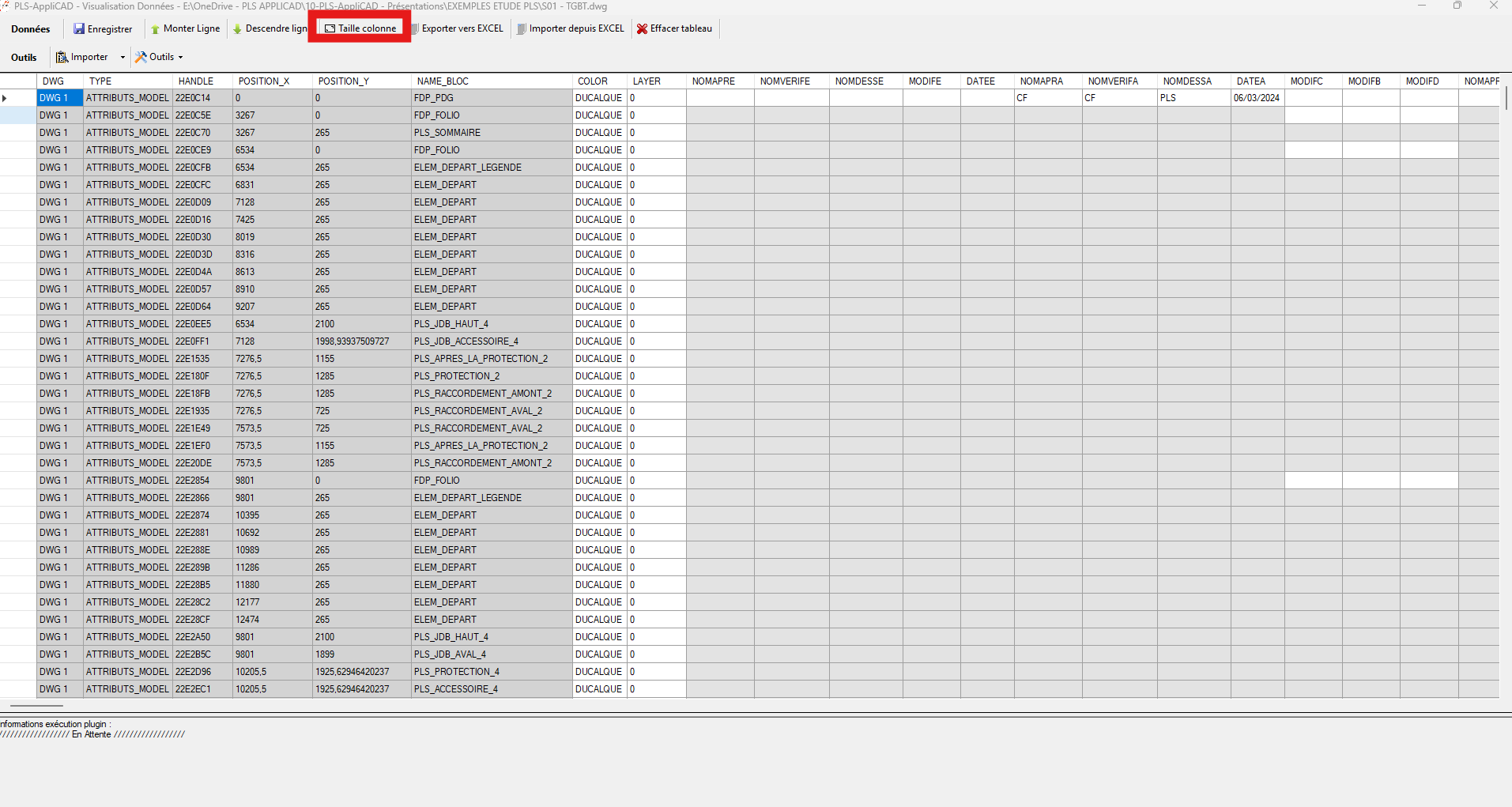
Column Size: automatically adjusts column widths for better readability.
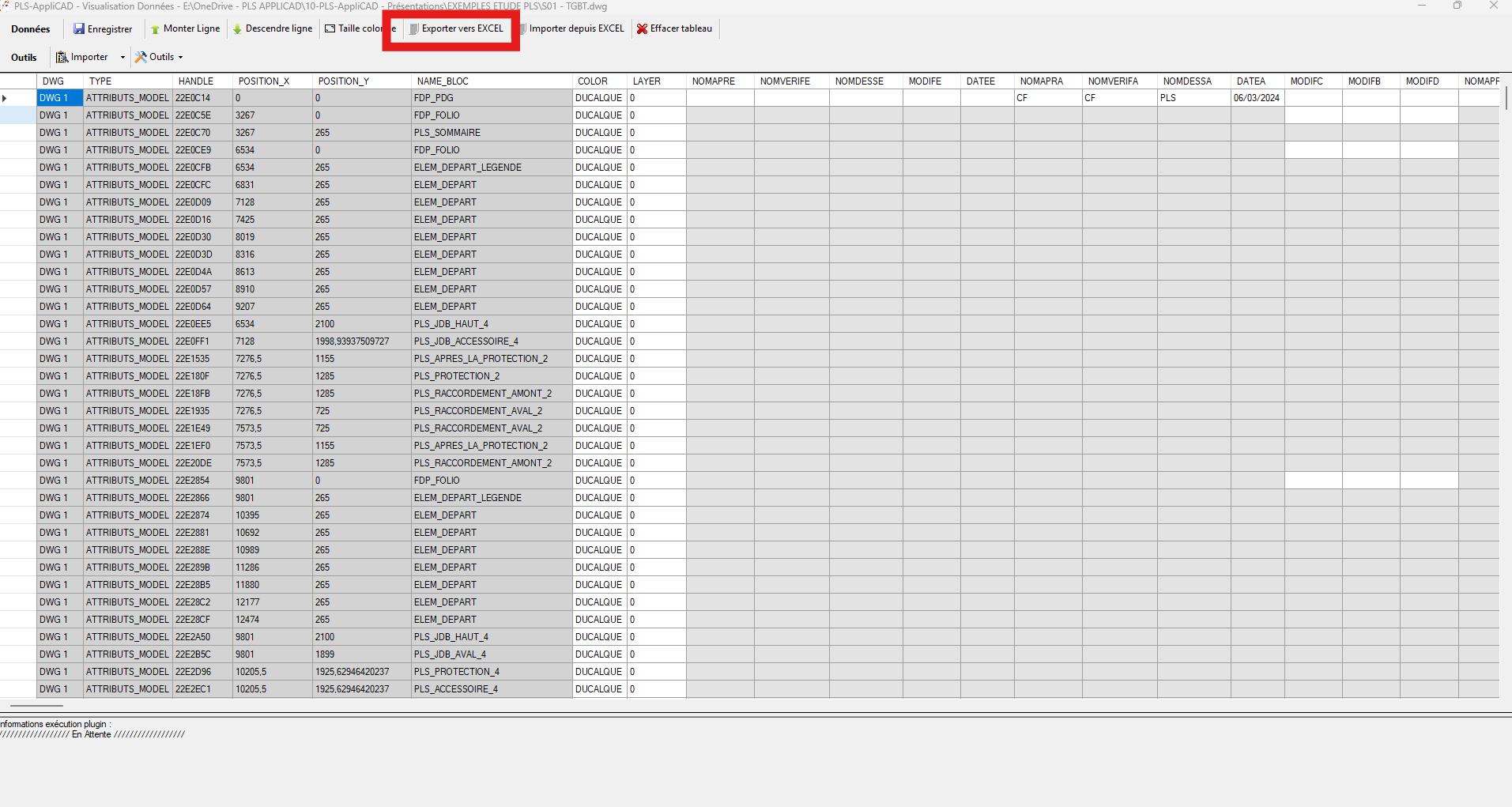
Immediate readability improvement. Export to Excel
Export to EXCEL: saves the current table to an Excel file.
Useful for archiving, client sharing, traceability, or offline editing.One click to generate an Excel report of your DWG data. Import from Excel
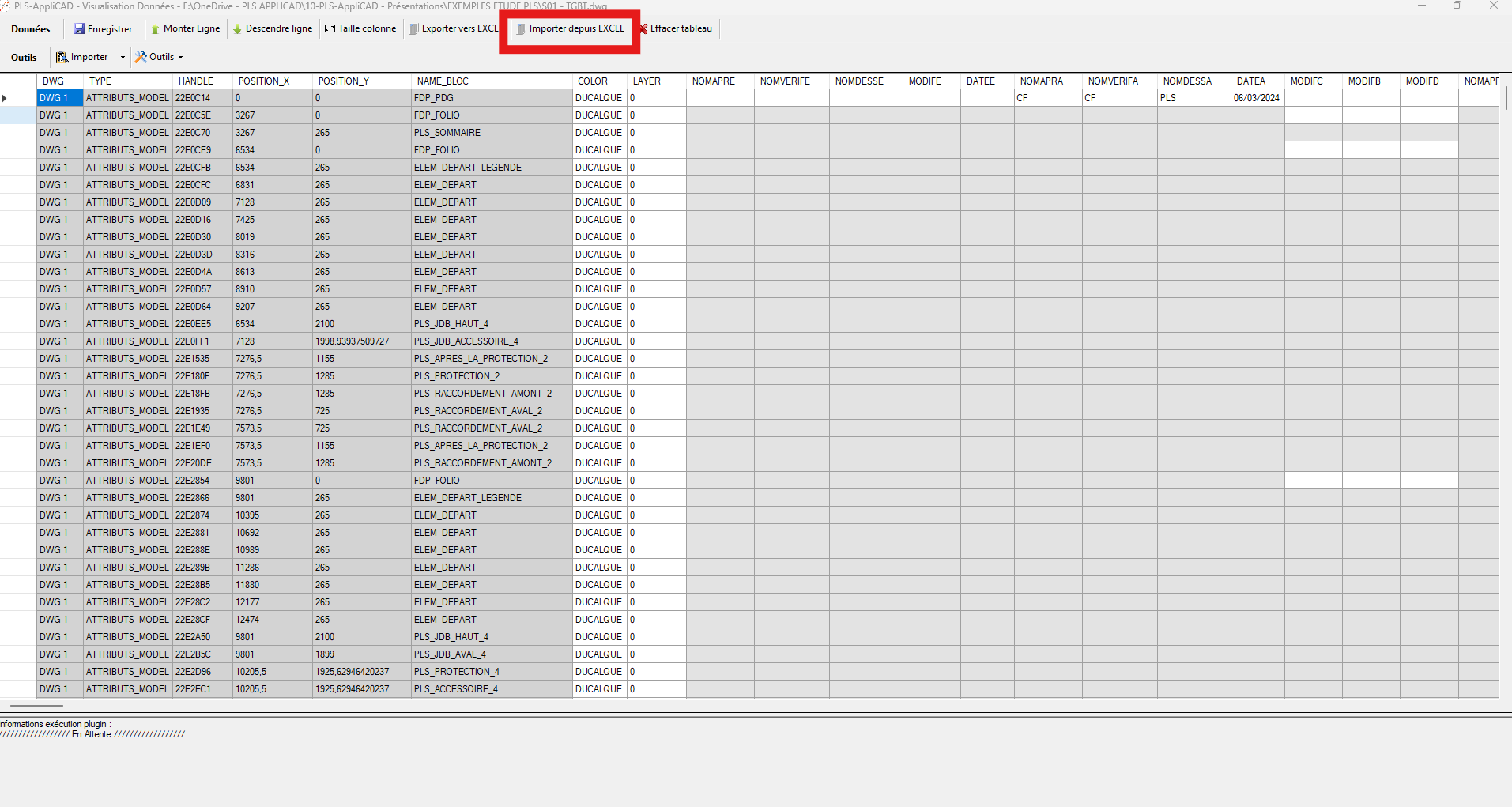
Import from EXCEL: loads the table from a prepared Excel file.
Your Excel edits return into the interface to be written back to the DWG.Edit in Excel, reinject here. Clear the displayed table
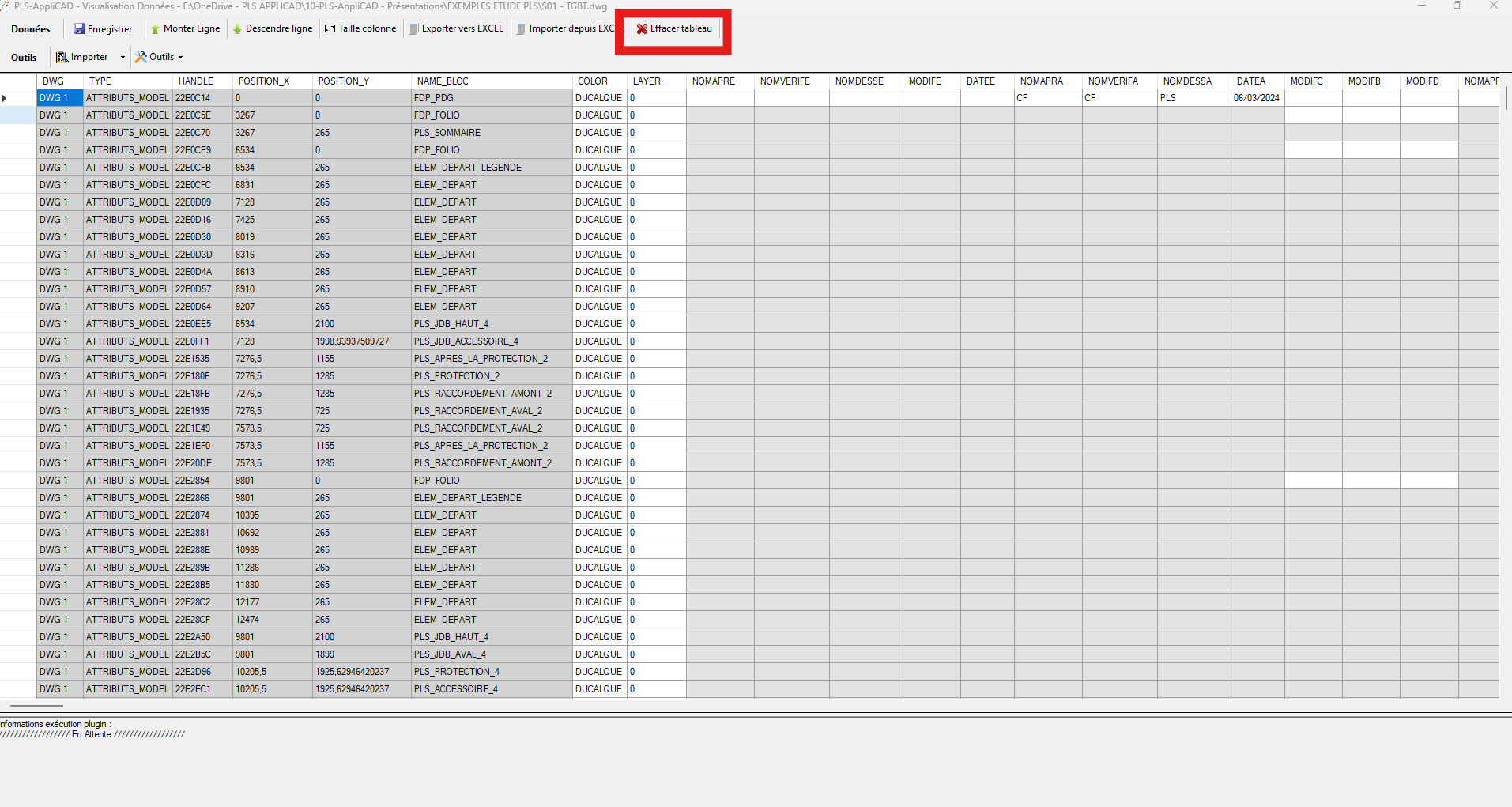
Clear Table: removes all rows from the view (does not modify the DWG).
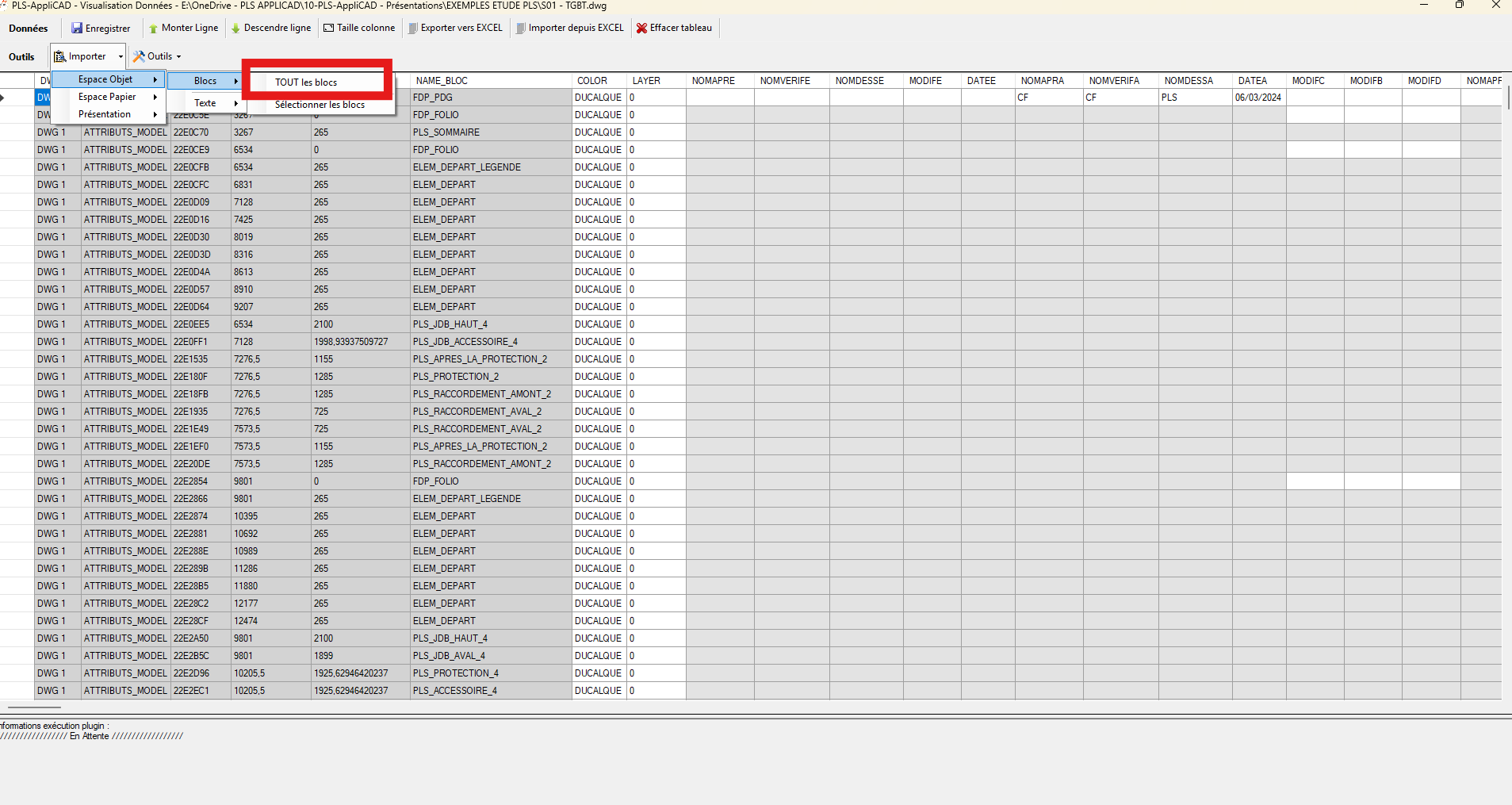
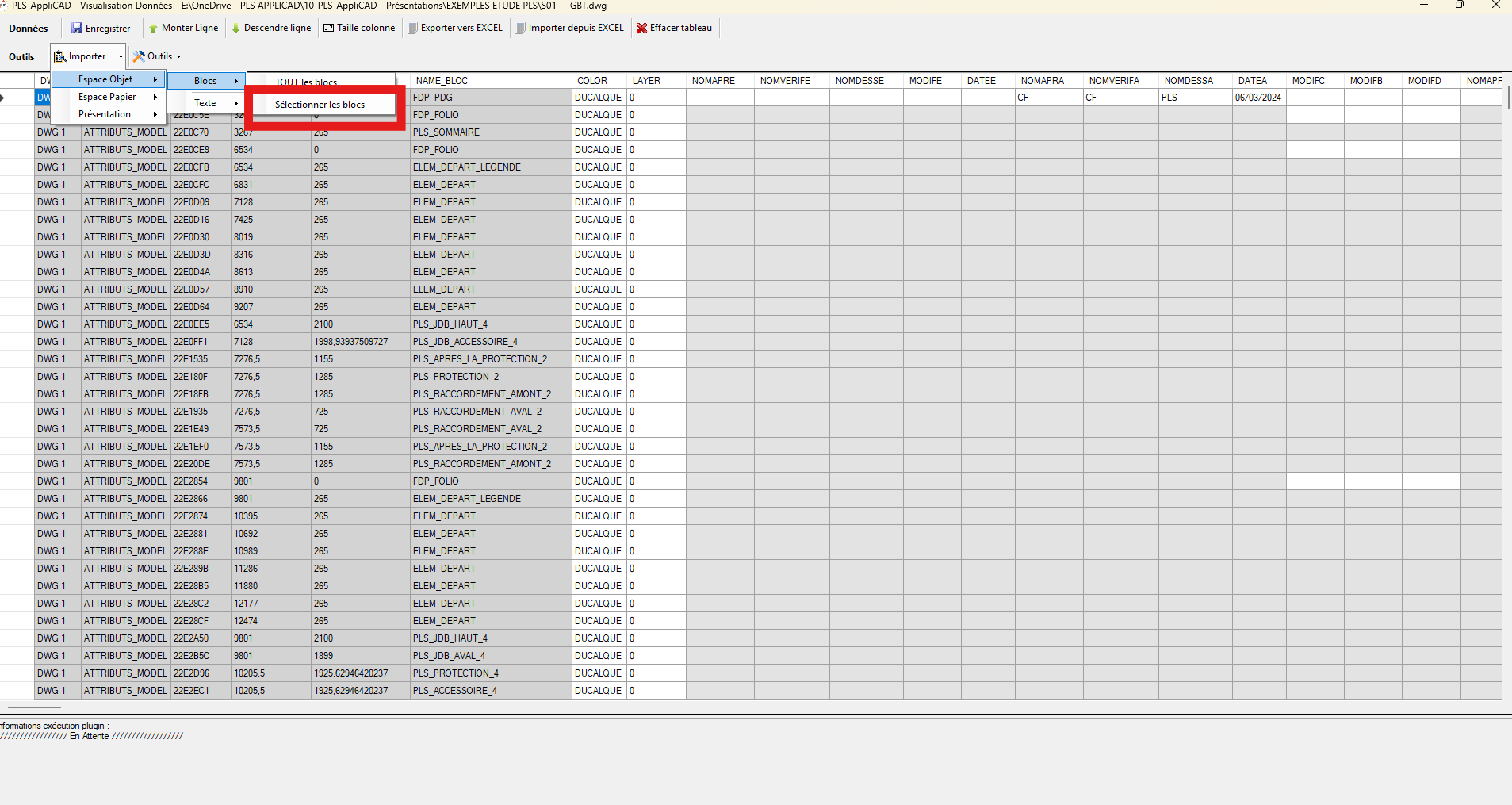
Quick reset of the working view. Import ▸ Model Space ▸ Blocks ▸ ALL blocks
Loads attributes from all blocks in Model Space into the table.
Mass extraction of block attributes (Model Space). Import ▸ Model Space ▸ Blocks ▸ Select blocks
Opens a list to choose which blocks to import.
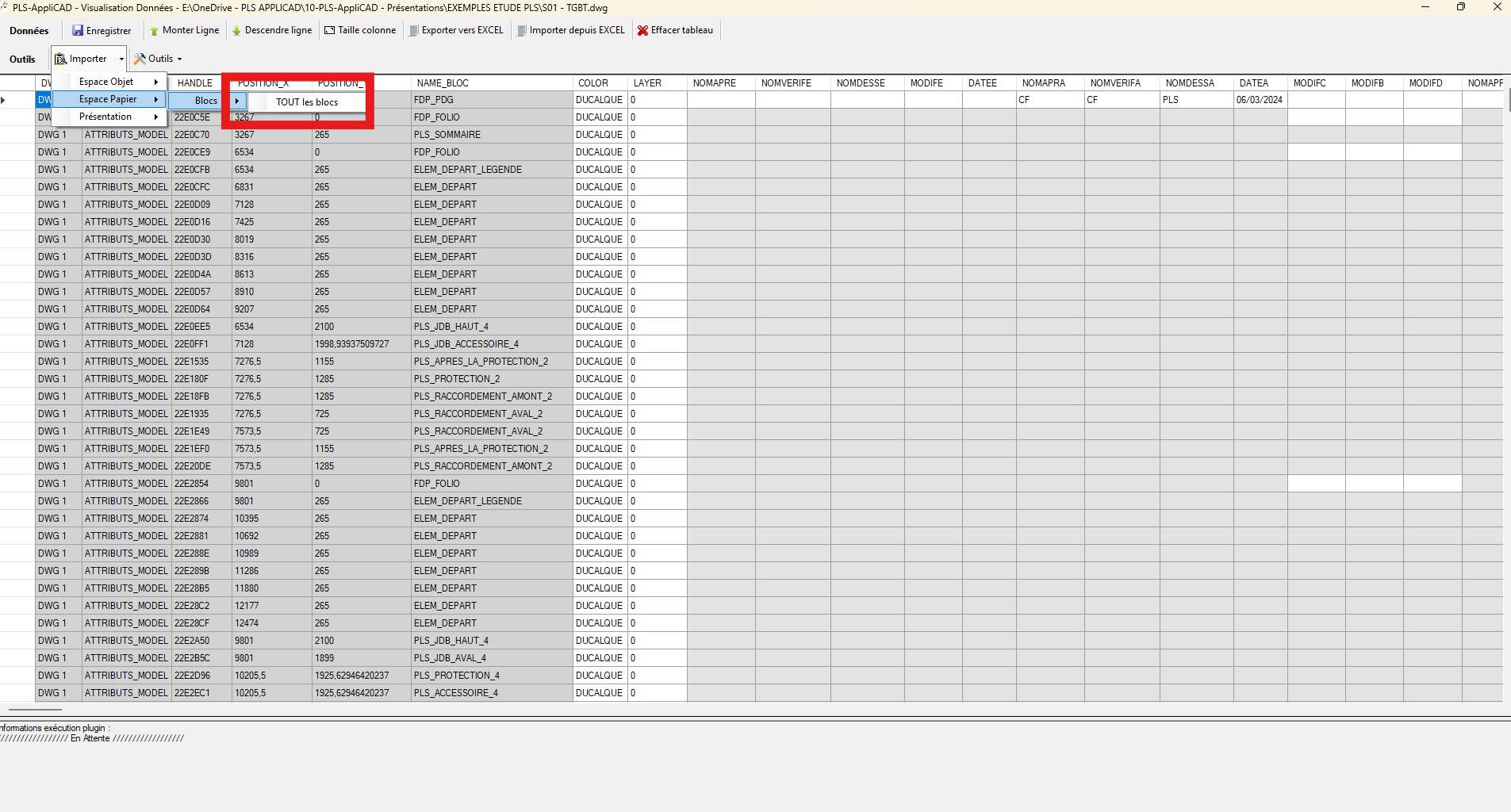
Selective import to keep only relevant data. Import ▸ Paper Space ▸ Blocks
Adds attributes from blocks located in layouts (Paper Space).
Ideal for checking or editing title blocks.Control of blocks placed in layout sheets. Import ▸ Layouts
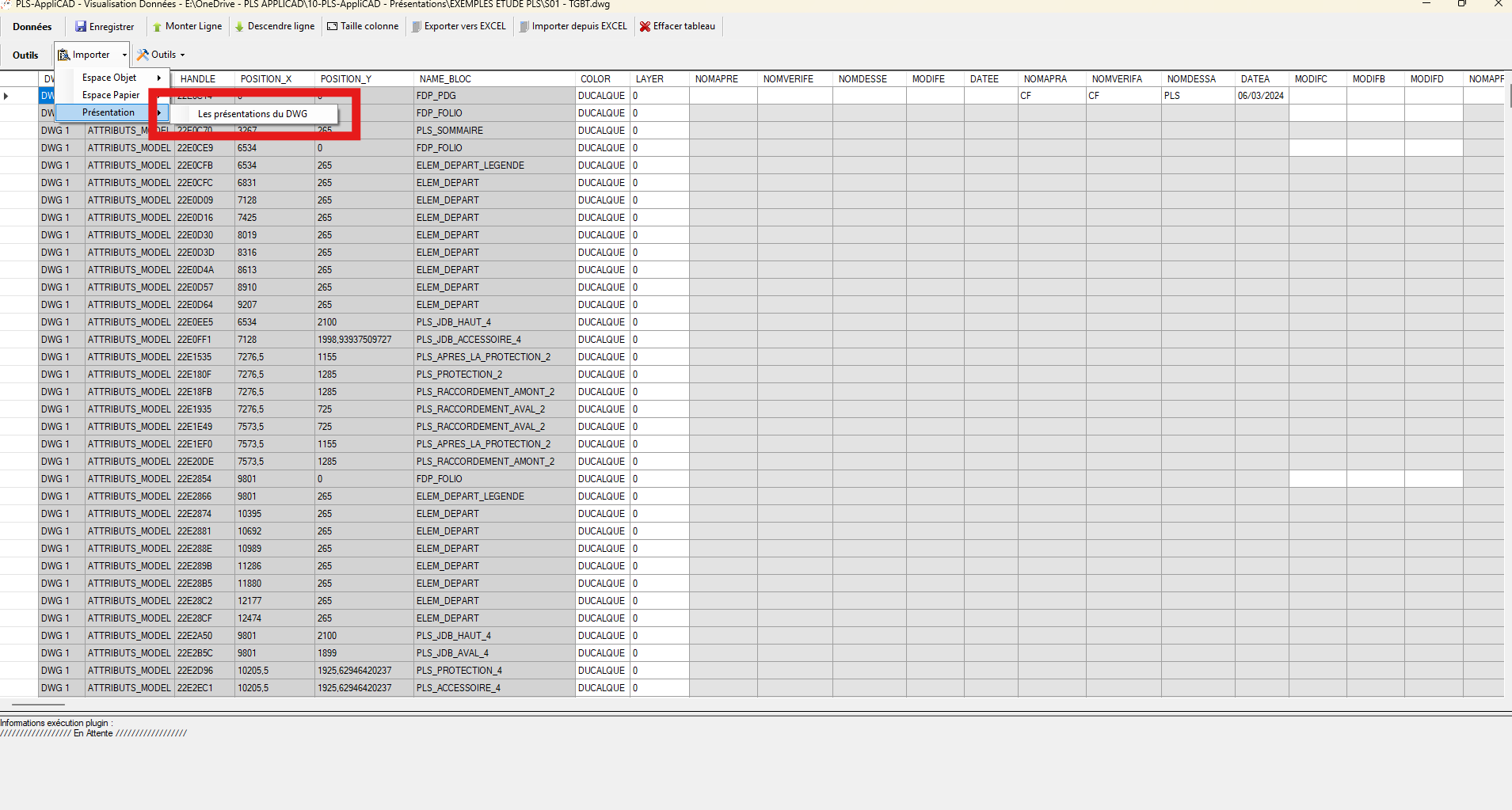
Adds the list of layouts as editable rows.
Prepare or revise layout names. Import ▸ Text
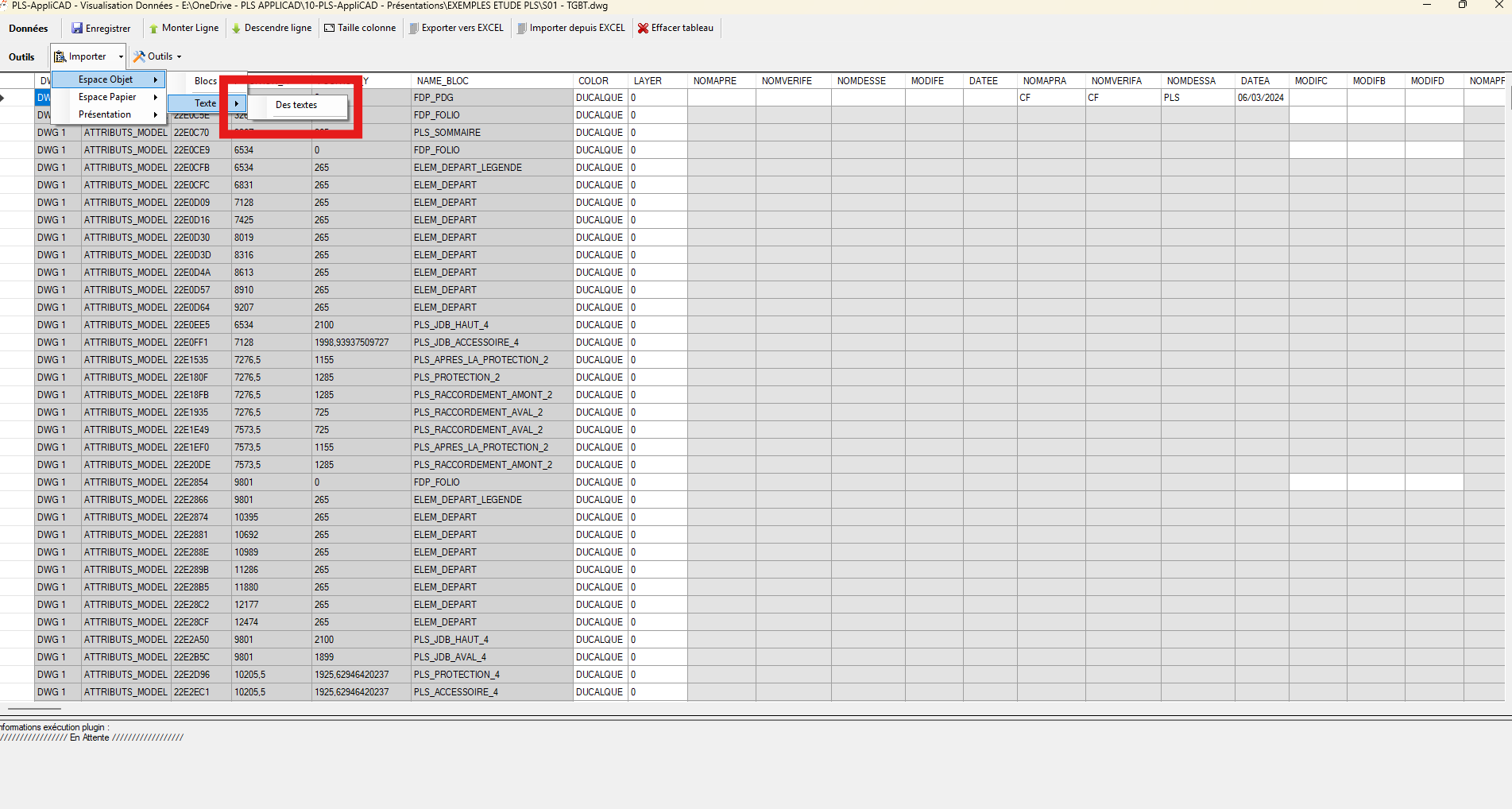
Searches for text (by word or partial match) and adds the results to the table for mass editing.
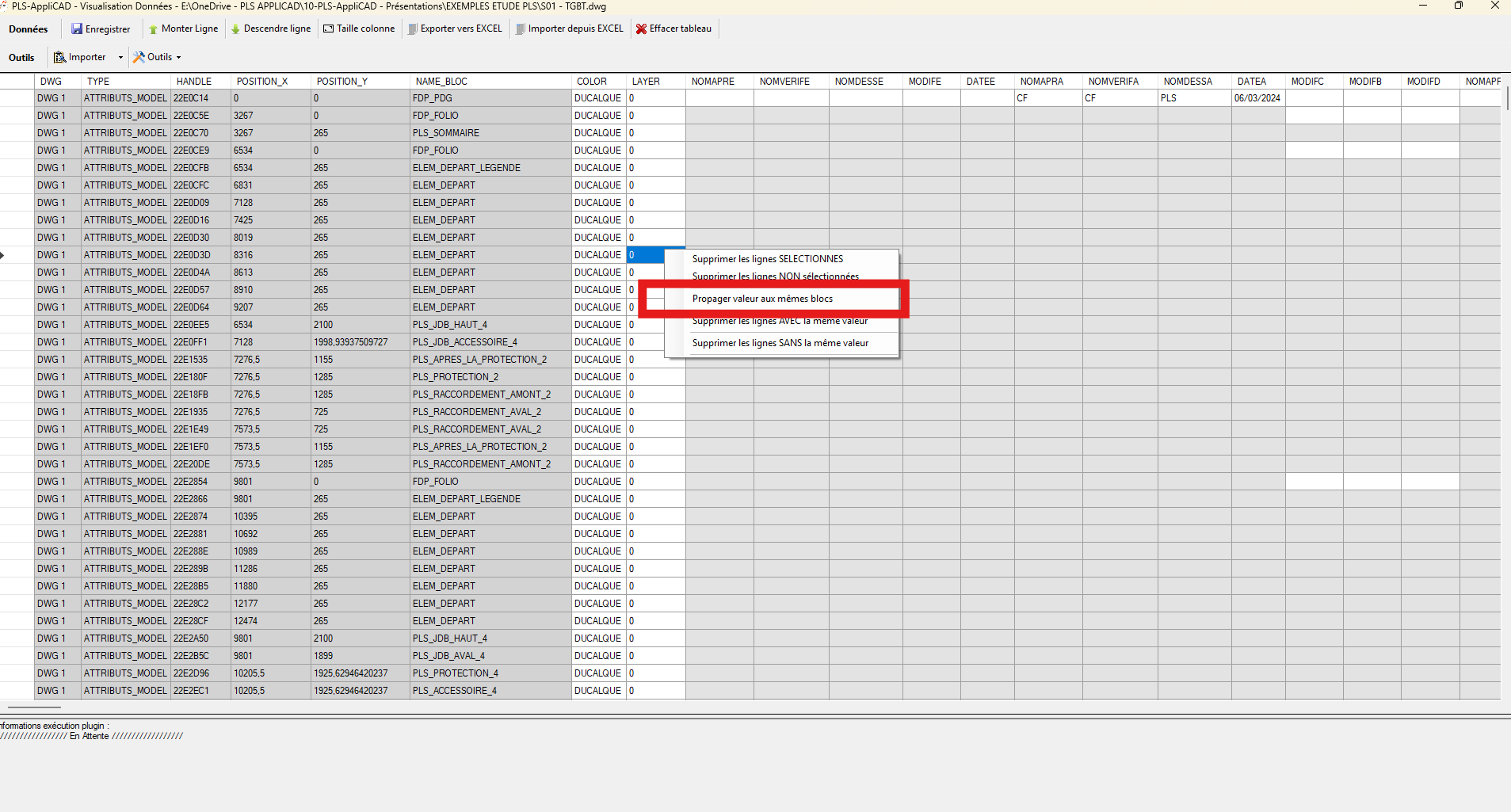
Locate and update repeated text occurrences. Propagate value (right-click)
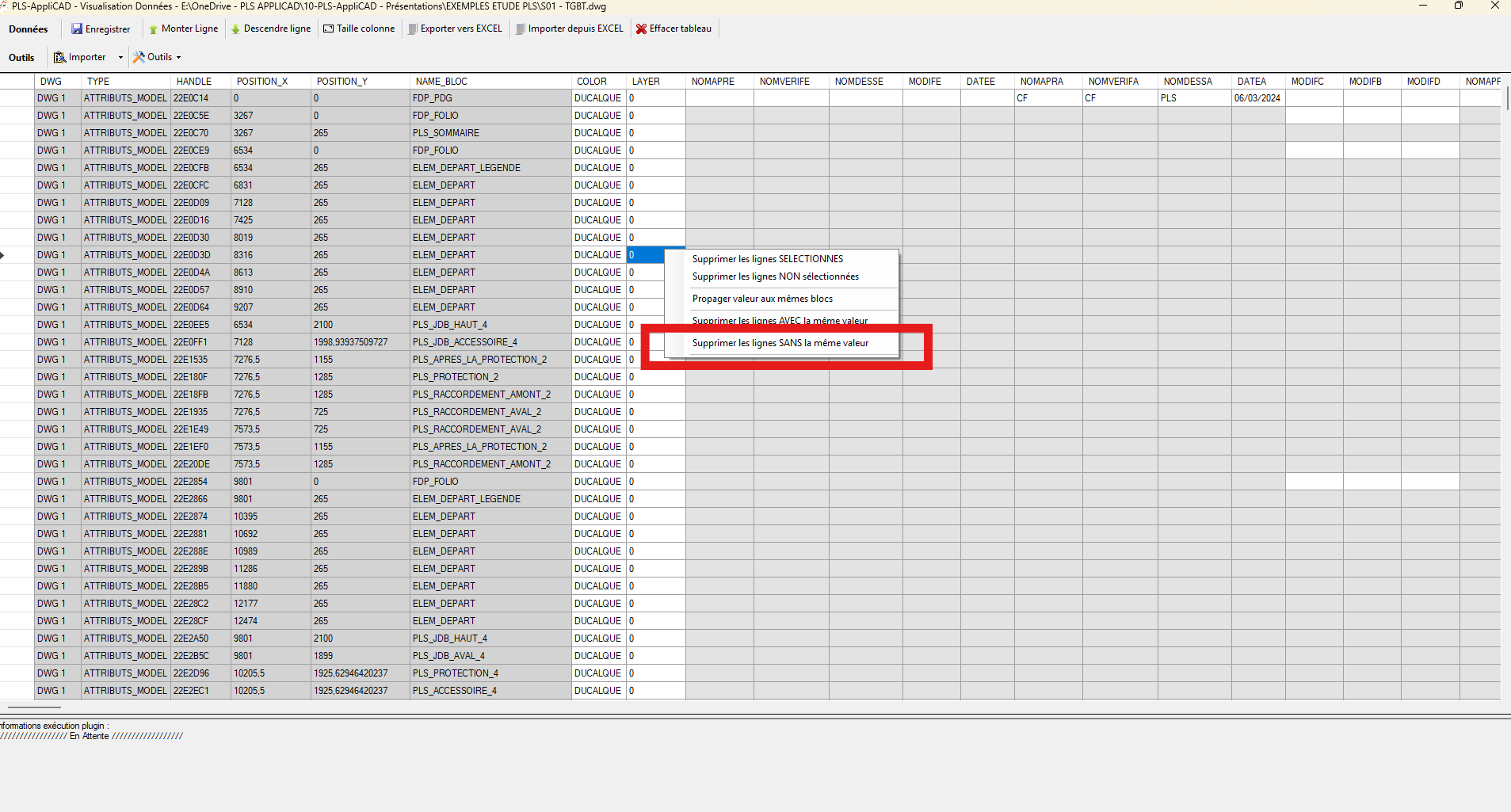
Propagate value to same blocks: copies the selected cell’s value to all rows with the same
BLOCK_NAME.Bulk homogeneous update. Clean selected rows
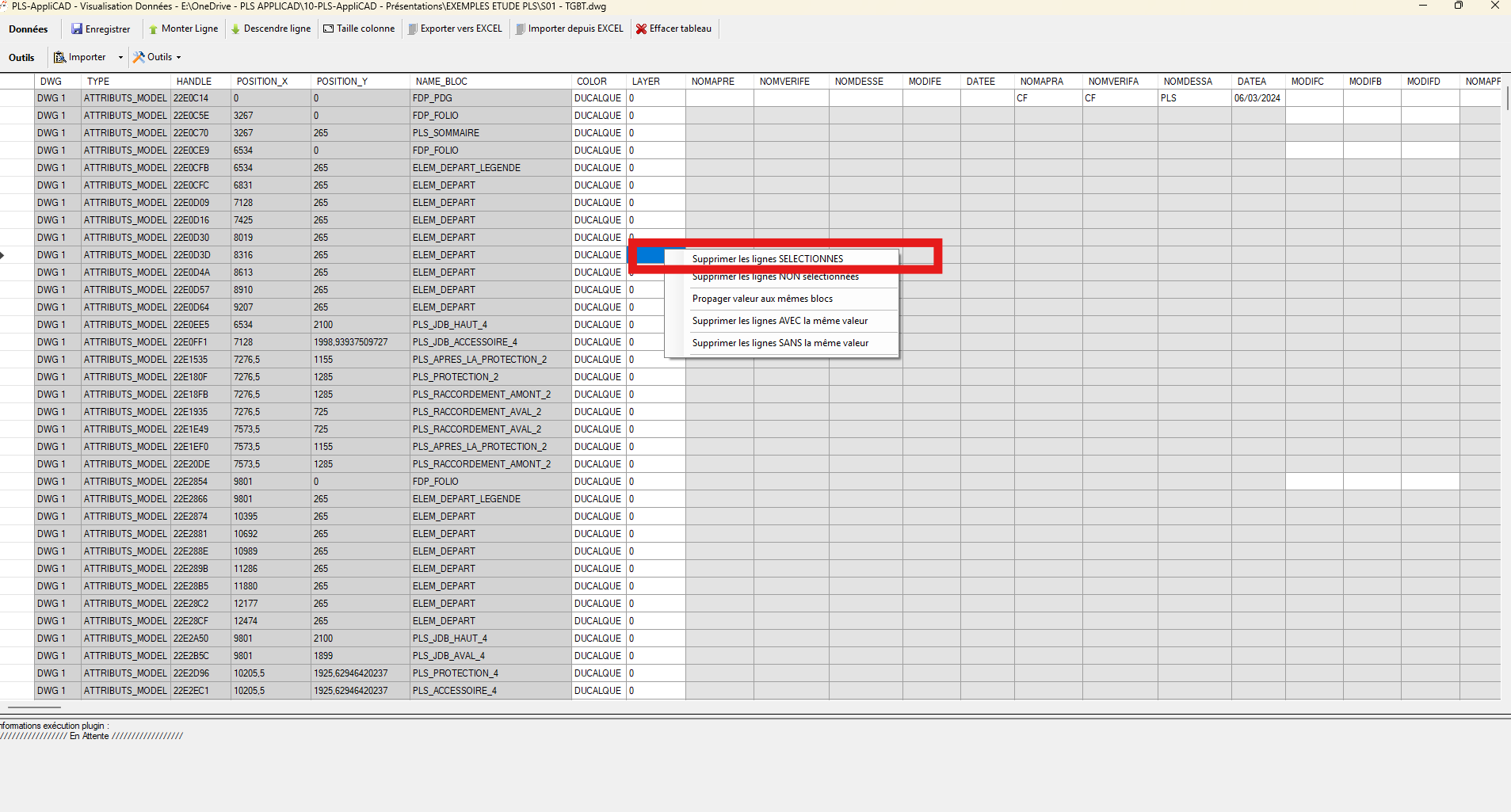
Delete selected rows (DWG unaffected): removes only the highlighted rows.
Clean the table without touching the DWG. Keep only selected rows
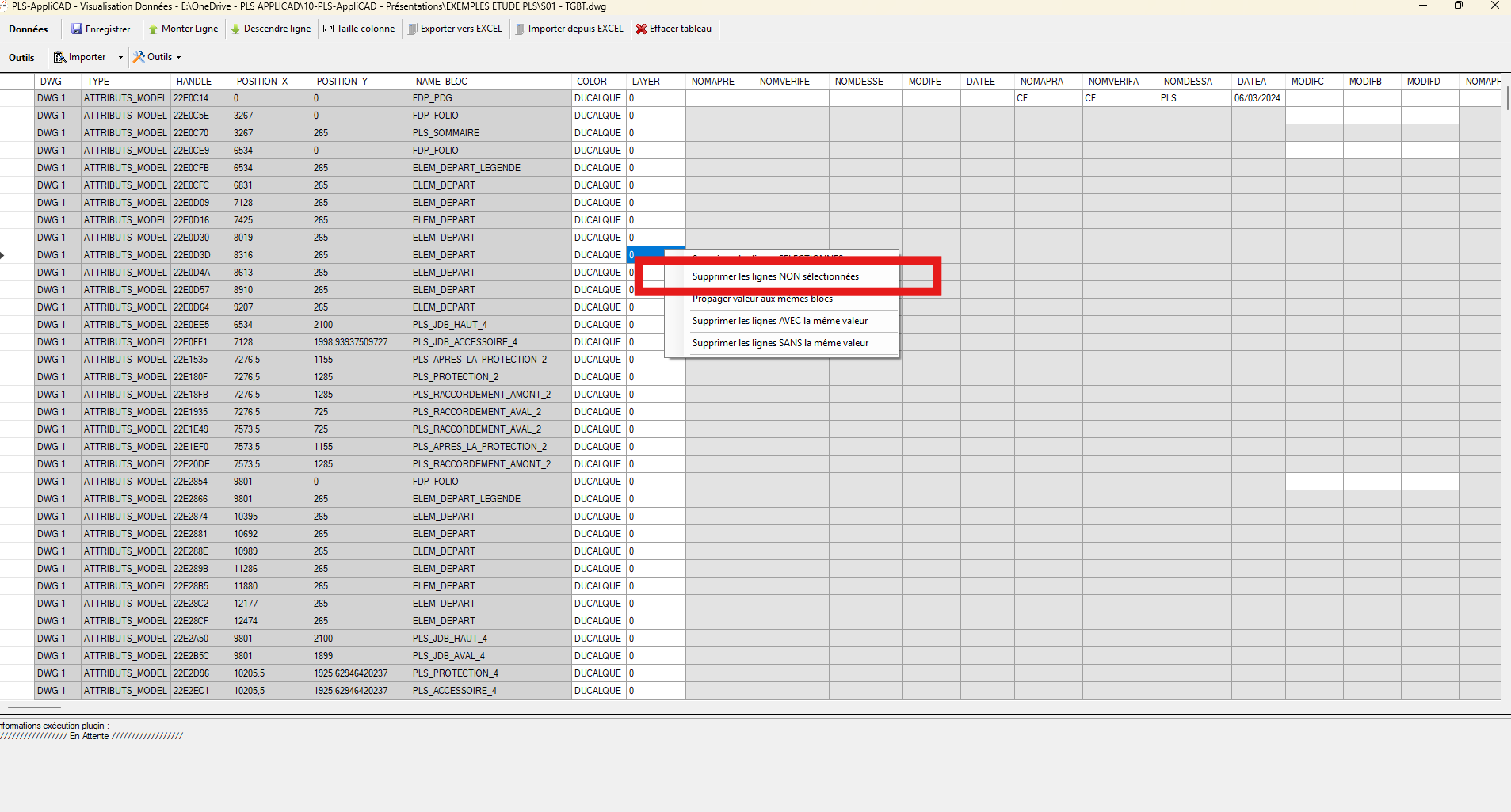
Delete NON selected rows (DWG unaffected): keeps only the selected rows and removes all others.
Focus on a specific working subset. Delete all rows with same value
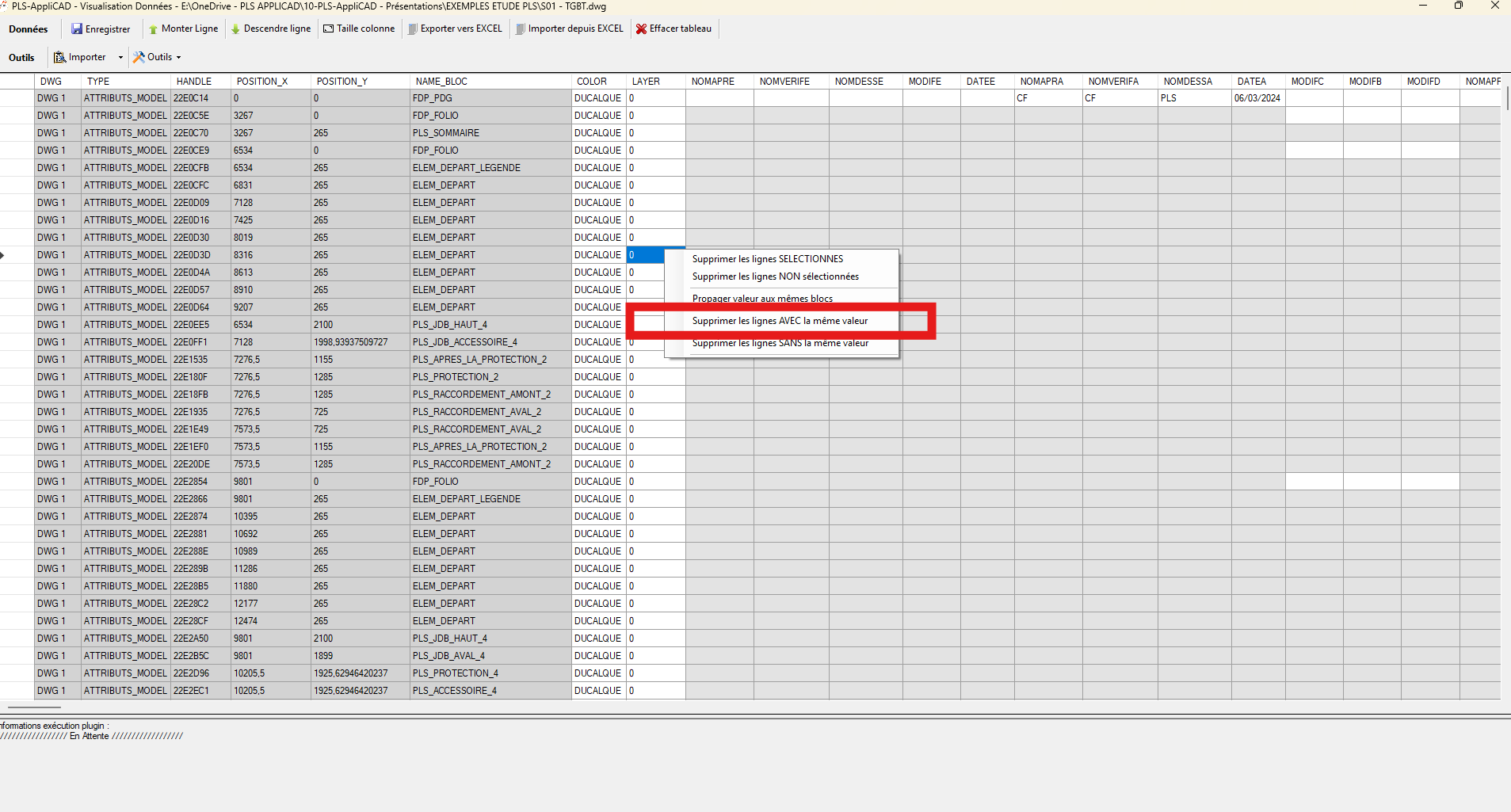
Delete rows WITH the same value: removes all rows matching the active cell’s value.
Mass cleanup based on shared value. Delete rows that DO NOT have this value
Delete rows WITHOUT the same value: removes all rows not matching the active cell.
Filter instantly to isolate one target value. Keyboard shortcuts
Ctrl+Ccopy,Ctrl+Vpaste,
Ctrl+Xcut,Ctrl+Aselect all,
Deleteclear.
Same as Excel.Maximum productivity without complex menus. Action log
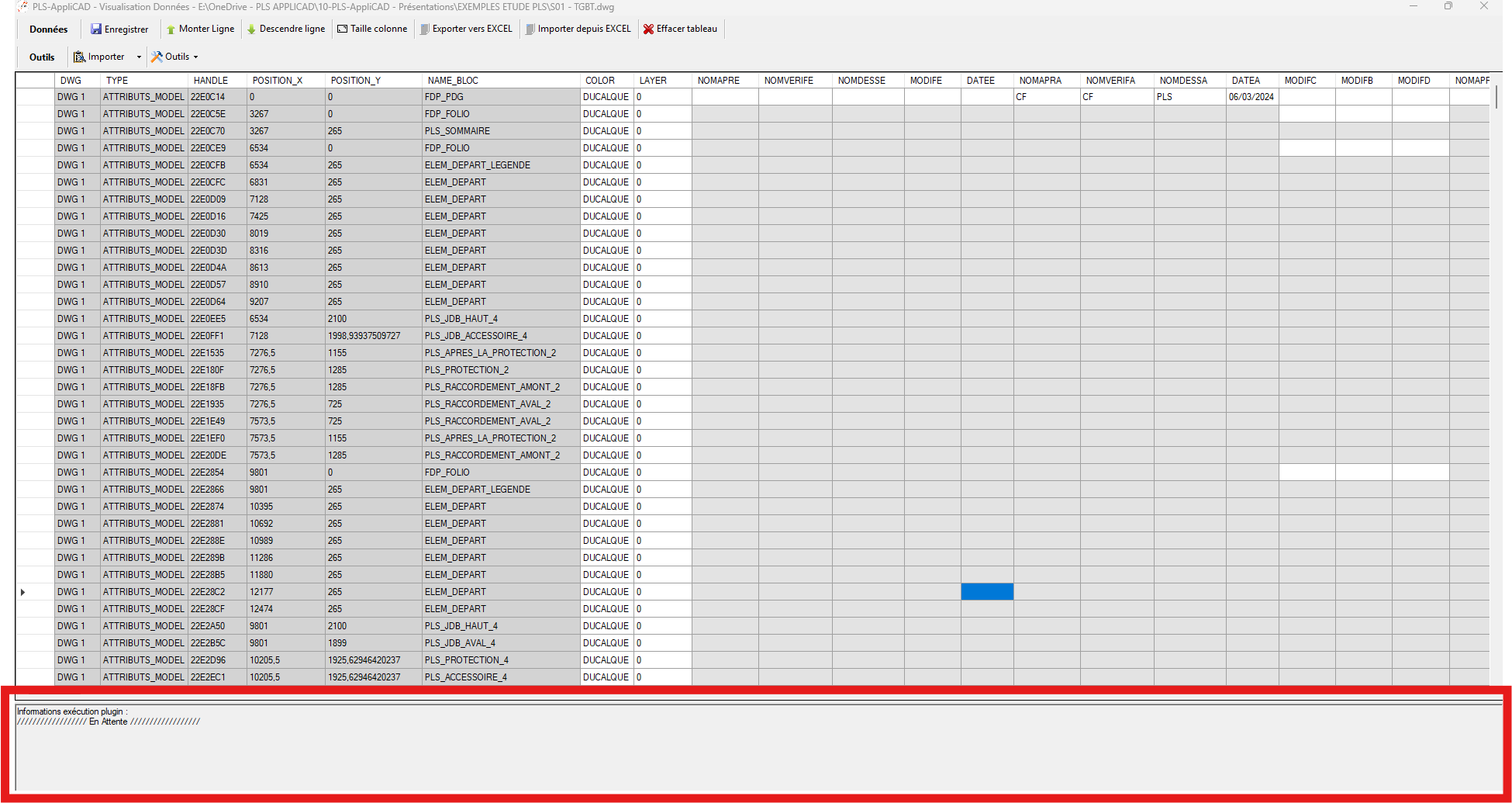
At the bottom: log and status messages showing imports, edits, deletions.
Real-time traceability of all operations.