
AutoCAD find replace text – search and replace in multiple DWG files
This module performs an AutoCAD find replace text operation across multiple drawings.
You define the text to search and the replacement text once. Then the software opens each DWG
in the list, scans attributes and text entities (Paper Space and Model Space), and replaces every
match with the new value automatically.
This is ideal when you need to correct a company name, update a project reference, change a date,
or fix a code in a whole set of drawings without editing each file by hand. You can combine this
batch-edit feature with other tools from our
AutoCAD plugins collection
.
For general information on text and attributes, you can also consult the
official Autodesk documentation
.
How the AutoCAD find replace text tool works
Enter the texts to process
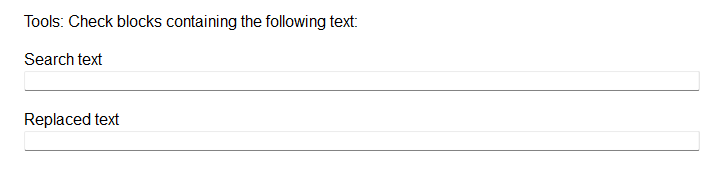
First, a dialog box opens. You enter the text to search and the replacement text.
The tool will use these values for all DWGs in the list.
Define the old text and the new text. Reading the DWG list
Next, the tool reads the list of DWGs displayed in the interface.
All these files will be processed one after another, automatically and without manual opening.All listed DWGs will be modified in sequence. Automatic opening of each DWG
For each entry in the list, the corresponding DWG is opened automatically.
This saves time and avoids repetitive manual work.Plan-by-plan processing without manual intervention. Analysis of the DWG content
Then, the tool scans Paper Space and Model Space. It reads attribute values and text
entities to detect every occurrence of the searched string in the drawing.Search in attributes and text entities across the drawing. Automatic replacement
Finally, each found occurrence is replaced by the new text.
Special characters, accents and spacing are preserved, except for the part that is replaced.
The tool repeats this process for all DWGs in the list.Immediate update of each matching value.



Why use AutoCAD find replace text on multiple DWGs?
Running an AutoCAD find replace text operation on several drawings at once saves
a lot of time and reduces the risk of forgetting a file or making manual typing mistakes.
It ensures that critical information such as client name, project ID or legal mentions stays
consistent across the whole DWG set.