Purpose: Import attributes into all DWGs from one Excel file
attribute values, etc., you use this tool to automatically write those changes back into all the related DWGs.
The software reads the Excel, applies the changes block by block, saves each DWG, then moves to the next one automatically.
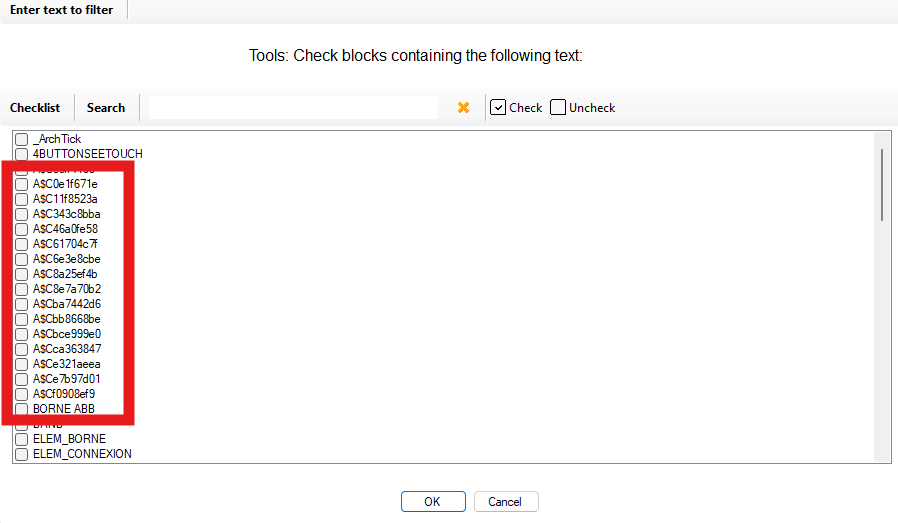
Selecting the blocks to update
The software scans all selected DWGs and retrieves the names of the blocks found.
A window appears: check the blocks you want to update.
(You can target only specific blocks instead of updating everything.)
You choose which blocks will be updated. Selecting the Excel file
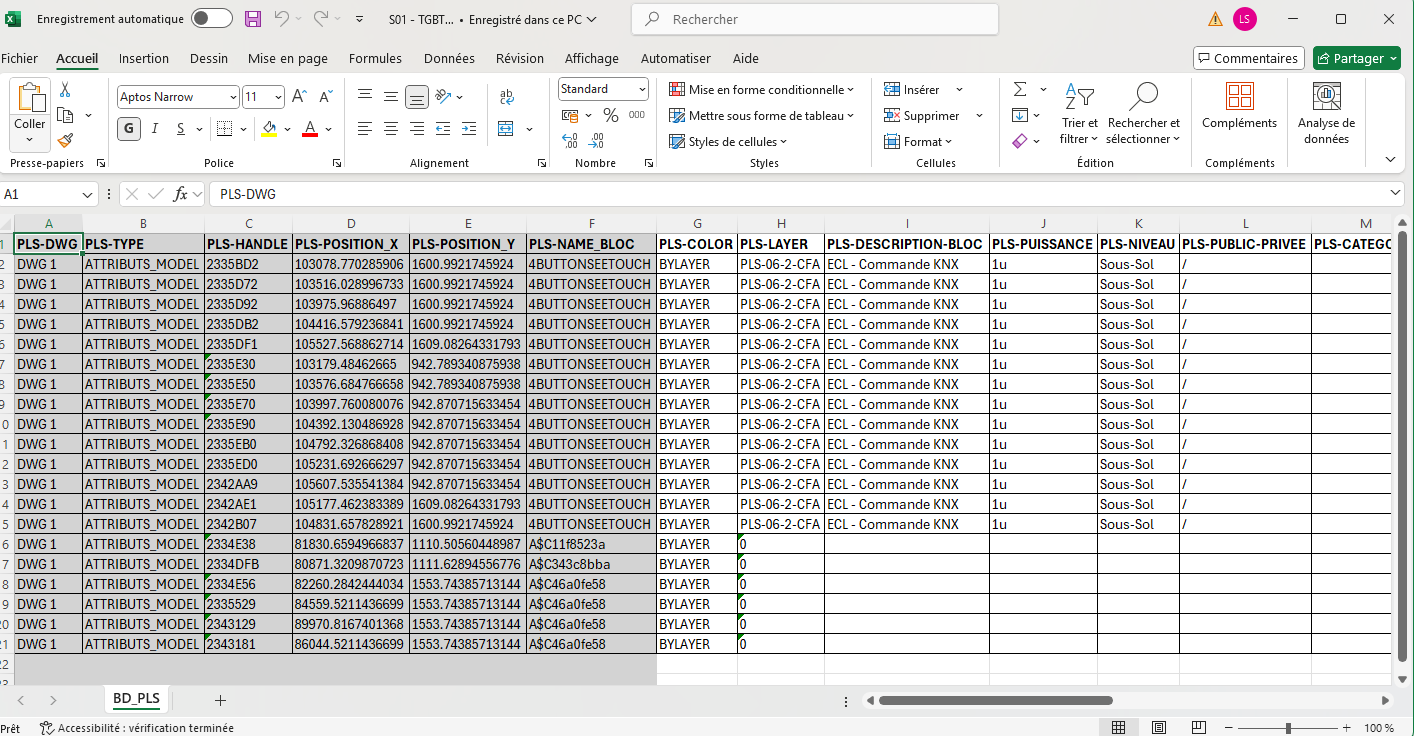
You select the Excel file to use.
This is the file generated by the export tool (EXCEL → ALL DWGs),
then modified by you (colors, layers, attributes, etc.).Use the modified Excel — no need to retype anything. Reading changes in Excel
The software reads the Excel:
• new attribute values (tag, description, etc.),
• layer changes,
• color changes, etc.It then prepares to inject these values back into the corresponding DWGs.
The tool analyzes your changes cell by cell. Automatic DWG update
For each DWG, the software applies the modifications read from Excel:
block attributes are updated, layers and colors are adjusted—without manually opening any drawing.DWGs are batch-updated according to the Excel file. Saving the updated DWGs
Each DWG is saved automatically after being updated.
You end up with a fully synchronized set of drawings.Changes are saved file by file. One action = all plans synced with Excel.