
Export block attributes to Excel (Model Space) – AutoCAD DWG
This tutorial shows how to export attributes from AutoCAD blocks in Model Space into Excel.
The plugin reads all selected blocks and creates a structured Excel sheet that you can easily sort, filter, and update.
You can modify colors, layers and attribute values, then push these changes back into the DWG to keep your drawing synchronized.
If you use several CAD tools in your workflow, you can also check our
other AutoCAD plugins
to speed up repetitive tasks.
For more information about block attributes in AutoCAD, you can refer to the
official Autodesk documentation
.
Step-by-step: export AutoCAD block attributes from Model Space into Excel
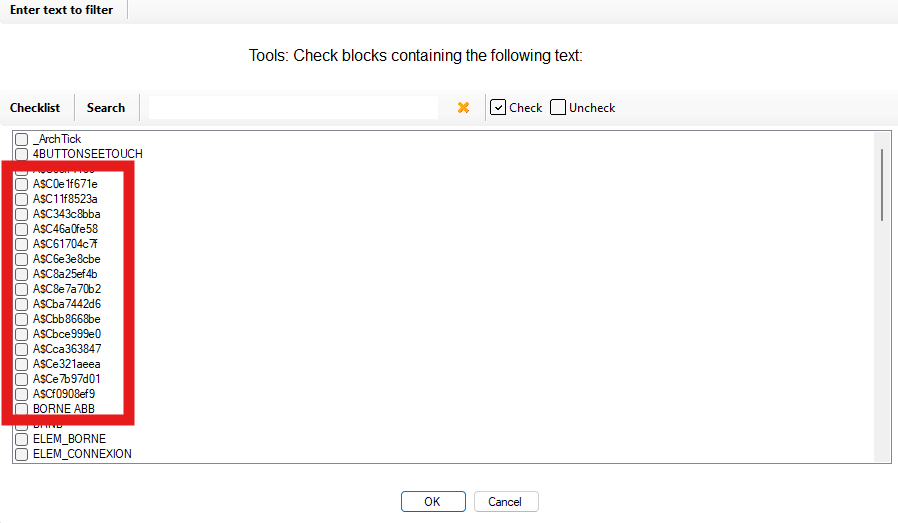
1. Select the blocks in Model Space
In Model Space, select the AutoCAD blocks you want to include in the Excel export.
You can focus on specific areas, devices or equipment, depending on your project.
Select relevant blocks in Model Space. 2. Read attributes and generate the Excel file
The plugin scans each selected block and reads all its attributes.
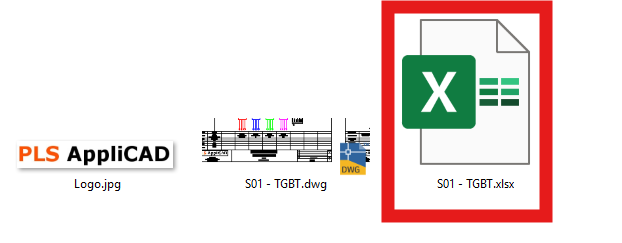
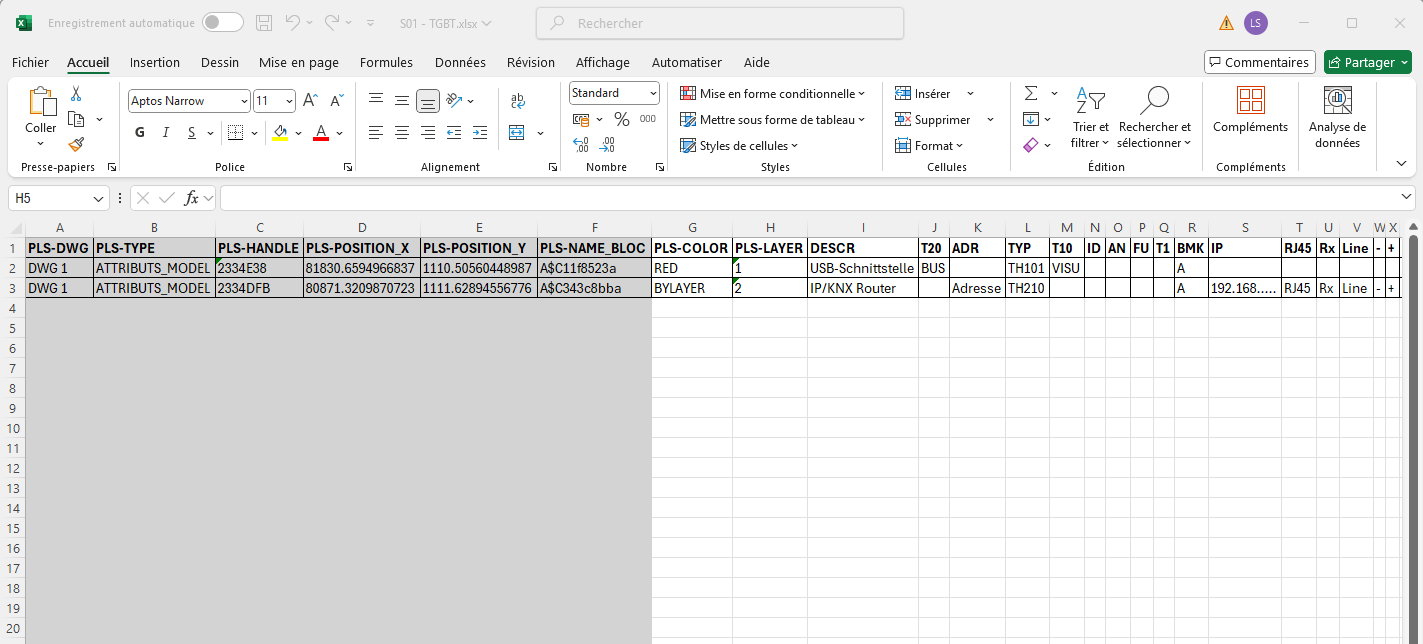
It then generates an Excel file next to the DWG where each block corresponds to one row,
and each attribute is stored in a dedicated column.Each block is converted into a row in Excel. 3. Edit block color directly in Excel
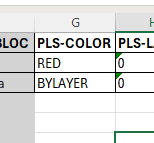
In the generated Excel table, you can adjust block colors using standard Excel tools.
This makes it easier to prepare visual changes before sending them back to the DWG.Update block colors directly in Excel. 4. Modify layers for each block
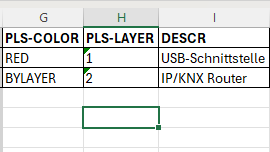
You can also change the target layer of each block inside Excel.
This is very useful to reorganize your drawing structure without manually editing every block in AutoCAD.Adjust block layers from the Excel table. 5. Update attribute values
Attribute values such as labels, codes, descriptions or comments are displayed in clear columns.
You can bulk-edit them, use Excel formulas, or copy/paste data from other sources to speed up corrections.Prepare and validate attribute corrections directly in Excel. 6. Open and review the Excel file
At the end of the export process, the Excel file opens automatically.
You can review the data, save the file in your project folder, or share it with colleagues for validation.The Excel file is ready to use immediately.

Benefits of using this AutoCAD to Excel workflow
By using this plugin to export block data into Excel,
you reduce manual editing inside AutoCAD, limit human errors, and gain a clearer overview of all your blocks.
It becomes much easier to perform quality checks, apply naming conventions, and keep your drawings consistent across large projects.